Formula
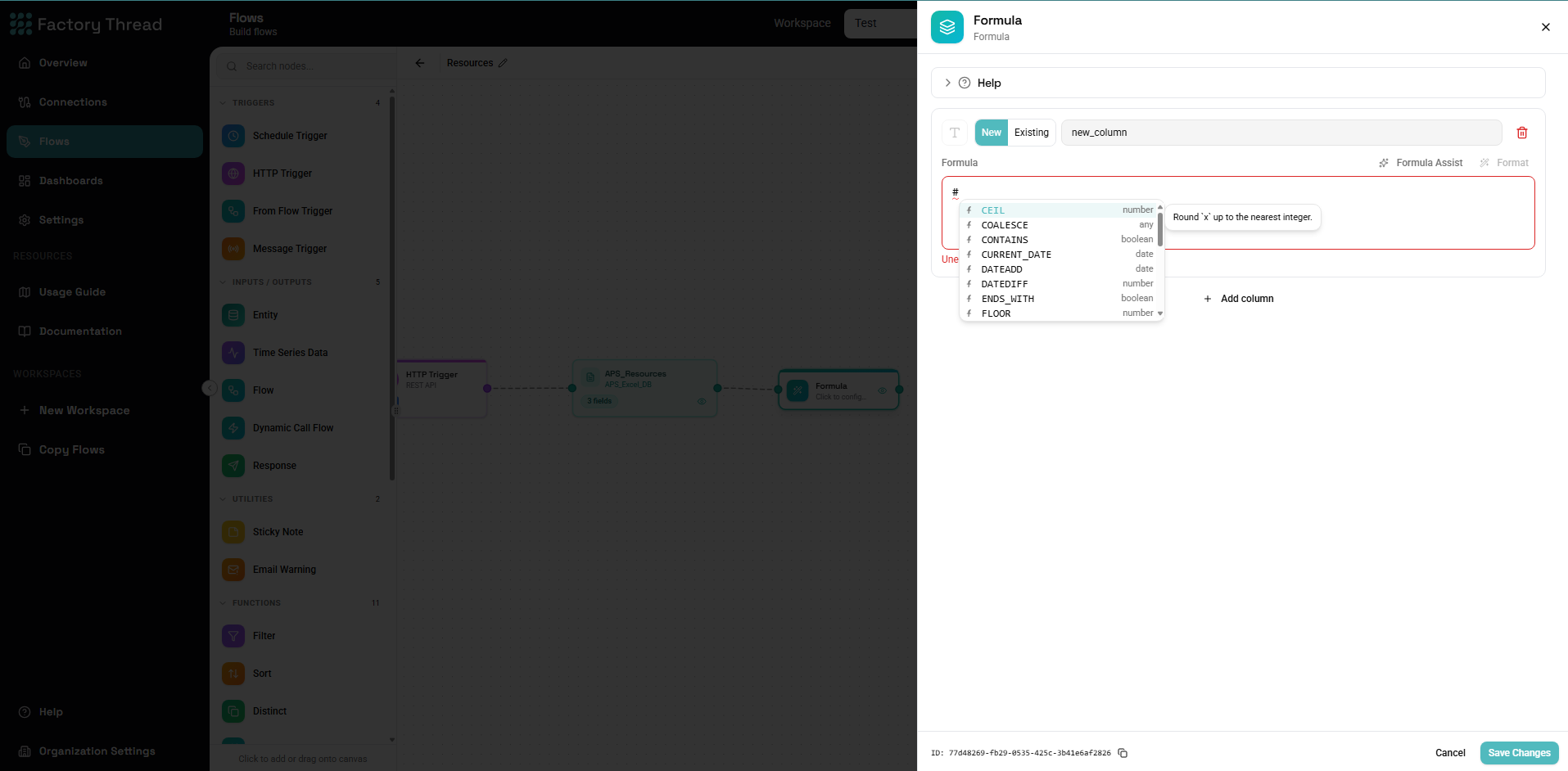
The Formula node adds new columns or changes existing column values by evaluating an expression for each row. It is the everyday tool for derived values — totals, formatted text, flags, classifications.
Renamed from "Transform". The Formula node was previously called the Transform node. The name changed because it only ever computed columns — it never reshaped data the way "transform" implied. Behaviour is unchanged; to reshape rows into a different structure, use the Map node instead.
What it does
Formula processes each row independently:
- New fields are added to the output.
- Existing fields are overwritten when you reuse their name.
- All other fields pass through unchanged.
It is strictly 1:1 — a Formula never adds or removes rows, only columns. Expressions cannot reference other rows; to summarize across rows use Group By.
Adding a Formula
- Drag Formula from the Functions section of the Element Panel onto the canvas (or press the canvas quick-add and search for "Formula").
- Connect it to a data source or an upstream node.
- Click the Formula node to open its configuration panel.
Configuration
The panel shows a list of output fields. Each one defines a column the node produces:
| Setting | Purpose |
|---|---|
| Name | The output column name. Reuse an existing field's name to overwrite it; use a new name to add a column. |
| Expression | The expression that computes the value, evaluated once per row. |
| Data Type | (optional) The expected output type — Text, Number, Boolean, Date, or Object. |
| Description | (optional) A note for your own reference. |
Click Add Field to define another output column. All fields are computed against the same incoming row, so a later field cannot reference a column an earlier field in the same node creates — chain a second Formula node if you need that.
Writing expressions
Expressions use the shared Expression Language — strict-SQL style, the same language Filter, Group By, and Map use. A quick reminder of the parts that trip people up:
- Reference a field by name:
Quantity. Wrap names with spaces in brackets:[Unit Price]. - Join text with
&, not+:FirstName & " " & LastName. - Compare with a single
=:Status = "Active". - Test for null with
IS NULL/IS NOT NULL, and substitute withCOALESCEorIFNULL.
See the Expression Language reference for the full operator and function list.
Formula Assist
Each expression field has a Formula Assist helper: describe what you want in plain language ("revenue minus cost as profit") and it generates the expression for you, which you can then edit. It is the Assistant appearing inline in this node, and runs only while you are editing — it produces an ordinary expression string and adds no AI step at flow run time. See Assistant in a Formula node for details.
Strict mode
By default, if an expression fails on a particular row, that field is left empty for that row and the flow continues. Enable strict mode (Fail on row error) to stop the run on the first error instead — useful while building and debugging a flow.
Examples
Line total
Name:       LineTotal
Expression: Quantity * UnitPrice
Type:       Number
Full name from parts
Name:       FullName
Expression: TRIM(FirstName) & " " & TRIM(LastName)
Type:       Text
Discounted total, null-safe
Name:       NetTotal
Expression: COALESCE(Quantity, 0) * COALESCE(UnitPrice, 0) * (1 - COALESCE(DiscountPercent, 0) / 100)
Type:       Number
Tier classification
Name:       Tier
Expression: IF(TotalPurchases >= 100000, "Platinum",
              IF(TotalPurchases >= 50000, "Gold",
                IF(TotalPurchases >= 10000, "Silver", "Bronze")))
Type:       Text
Overdue flag
Name:       IsOverdue
Expression: DueDate < CURRENT_DATE() AND CompletedDate IS NULL
Type:       Boolean
Formatted order date
Name:       DisplayDate
Expression: FORMAT_DATE(OrderDate, "MMM D, YYYY")
Type:       Text
Next steps
- Expression Language — full operator and function reference
- Filter — keep only rows that match a condition
- Group By — roll rows up into per-group totals
- Map — reshape rows into a different (nested) structure