Connections Overview
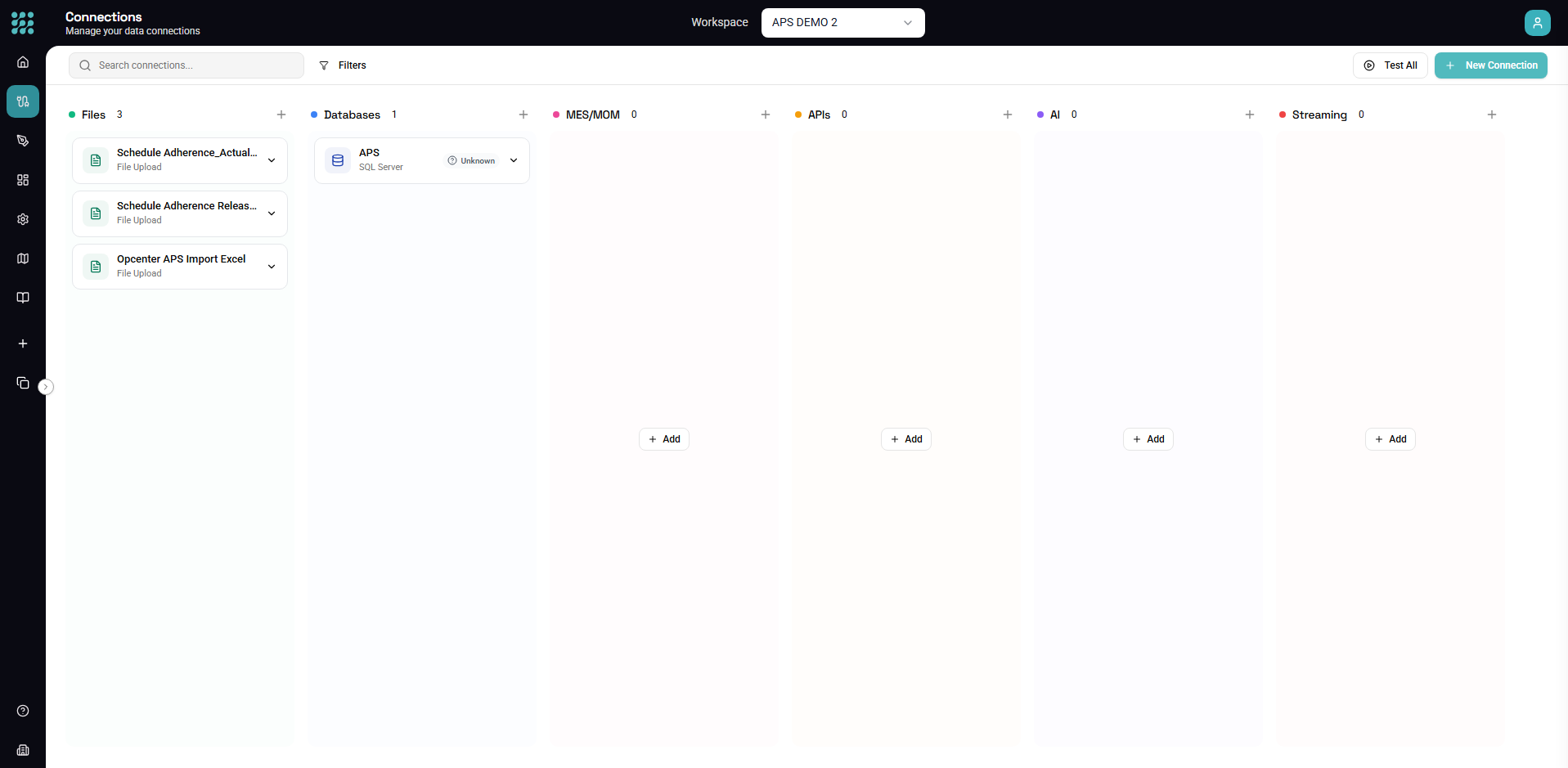
Connections are the foundation of FactoryThread. They provide secure, managed access to your data sources — manufacturing systems, databases, files, APIs, and AI services. A Connection captures how to reach and how to authenticate against a system; it never stores the data itself. Once connected, FactoryThread discovers the entities (tables, endpoints, sheets, tags) you can use in your Flows.
Connection categories
The New Connection dialog groups connectors into six categories:
| Category | Connectors |
|---|---|
| MES / MOM | Siemens Opcenter Execution Core, Opcenter X, Opcenter RD&L, Opcenter APS, Plex Scheduler, i3X, Acumatica ERP, OPC UA |
| Databases | SQL Server, PostgreSQL, Amazon Redshift, Microsoft Access, IBM DB2, InfluxDB |
| Files | File Upload, Local Files, SharePoint |
| APIs | REST API, OData, SOAP |
| AI | OpenAI |
| Streaming | MQTT |
The Connections page
Navigate to Connections in the left sidebar. Your connections appear as cards, each showing:
- Name — your descriptive name for the connection
- Type — the connector icon
- Status — health indicator (green / red / gray)
- Entity count — number of discovered entities
Connection status
| Status | Meaning |
|---|---|
| Green (Healthy) | Connection is working, recently tested |
| Red (Error) | Connection failed, needs attention |
| Gray (Unknown) | Not recently tested |
Not every connector reports status — file uploads, for example, have nothing to test. Click a connection to see detailed status and any error messages.
Creating a connection
- Click + New Connection in the top right.
- Select the connector that matches your data source (see the categories above).
- Configure — the required fields vary by connector; see each category page for specifics.
- Test Connection to verify your settings (where the connector supports it). Success shows a green check; failure shows the error.
- Save. FactoryThread stores the connection securely and discovers its entities.
Managing connections
- Edit — click a card, change settings in the detail panel, Save. You can update the name, host/URL, credentials, and advanced options.
- Refresh Entities — re-discover entities after the source schema changes (new tables, columns, tags).
- Test Connection — periodically verify a connection is healthy.
- Duplicate — copy a connection (useful for dev/prod variants with different credentials).
- Delete — remove a connection.
Warning: Deleting a connection affects every Flow using its entities. Review dependencies before deleting.
Understanding entities
An entity is a schema-bound handle to a specific set of data inside a connection — a table or view in a database, a sheet or range in a file, an endpoint in an API, a measurement in InfluxDB. Flow source and output nodes reference entities, never the connection directly.
Click a connection to see its discovered entities, and click an entity to see its schema: column names, data types, and nullability. That schema is what the Designer uses to keep your Flows type-consistent.
Security
- Credentials are encrypted at rest and never shown in the UI after entry.
- Connections are workspace-scoped — only members of the workspace can see and use them, and credentials are never visible to users.
- A single connection's identity can be shared across workspaces in the same organization, with per-workspace credentials.
Best practices: use service accounts with least-privilege permissions, rotate credentials periodically, prefer one connection per source system, and give each connection a clear, descriptive name.
Troubleshooting
Connection test fails
- Connection refused — check the hostname/port, firewall rules, and that the service is running.
- Authentication failed — verify credentials and that the account has the needed permissions.
- Timeout — network connectivity, an overloaded server, or a firewall.
Entities not appearing — refresh entities after schema changes, and check that the account has permission to read the schema.
Next steps
- MES / MOM Connections — Opcenter, Plex, Acumatica, i3X, OPC UA
- Database Connections — SQL Server, PostgreSQL, Redshift, DB2, InfluxDB
- File Connections — Upload, Local Files, SharePoint
- API Connections — REST, OData, SOAP
- AI Connections — OpenAI
- Streaming Connections — MQTT