Email Triggers
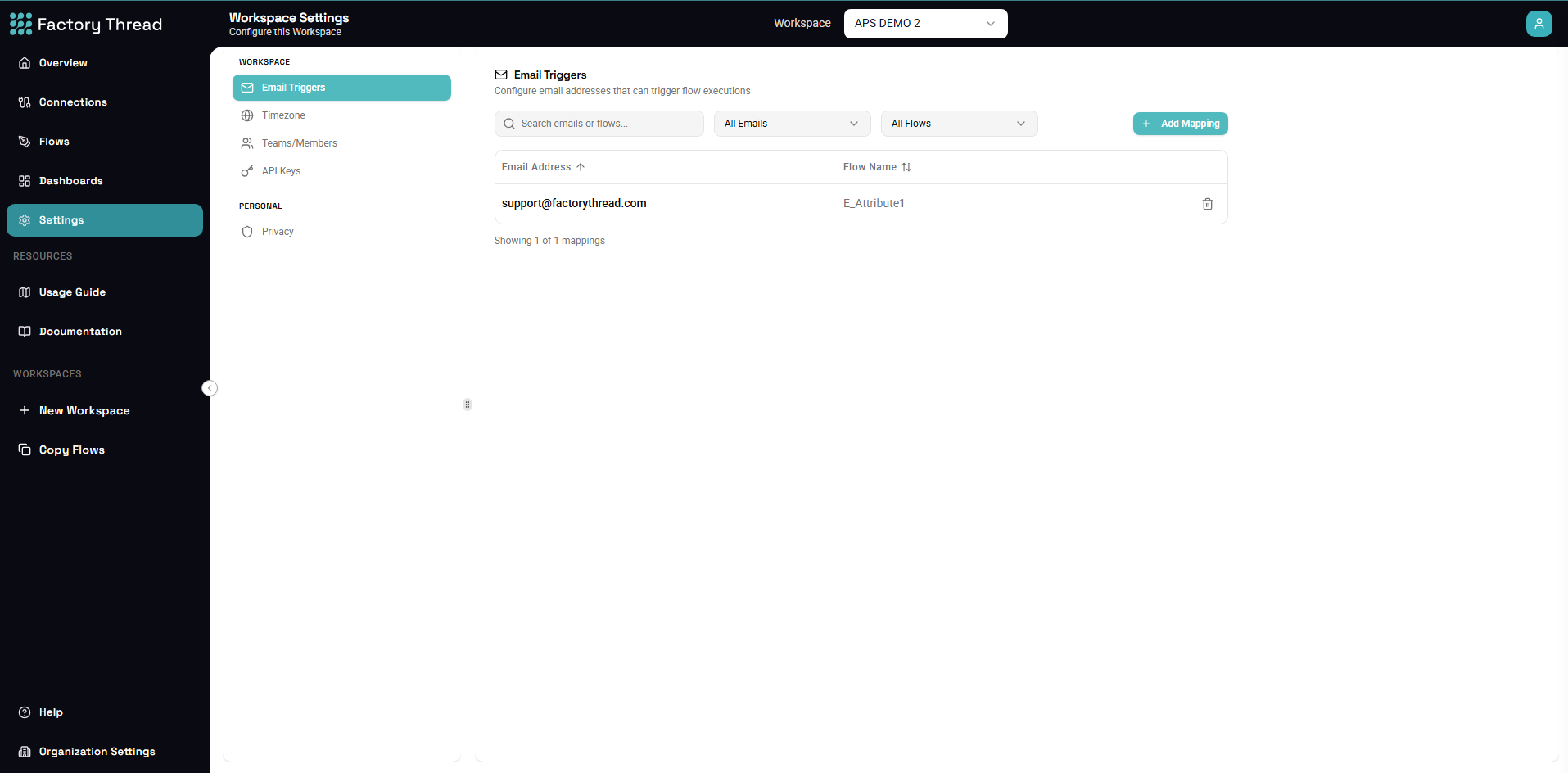
Email triggers allow workflows to start when emails are received at designated addresses. This enables automation for email-based processes like support tickets, order notifications, and document processing.
How Email Triggers Work
- You configure an email address for your flow
- When email arrives at that address, the flow executes
- Email content (subject, body, attachments) becomes flow parameters
- The flow processes the email data
Setting Up Email Triggers
Enable Email Integration
- Navigate to Settings > Email Configuration
- Enable email triggers for your workspace
- Verify your domain (if using custom domain)
Configure Email Address
System-generated addresses:
orders-flow-abc123@inbound.factorythread.io
support-tickets@yourworkspace.factorythread.io
Custom domain addresses:
orders@automation.yourcompany.com
support-intake@yourcompany.com
Email Settings
Basic Configuration
| Setting | Description |
|---|---|
| Email Address | The address that triggers this flow |
| Subject Filter | Only process emails matching subject pattern |
| Sender Filter | Only process from specific senders |
| Attachment Required | Only process if attachments present |
Subject Filters
Exact match:
Subject: ORDER CONFIRMATION
Contains:
Subject contains: "Order #"
Regex pattern:
Subject matches: ^Order\s#\d+
Sender Filters
Specific addresses:
From: orders@partner.com
From: notifications@supplier.com
Domain filter:
From: *@trusted-partner.com
Allow list: Multiple approved senders.
Attachment Handling
Require attachments: Only trigger when email has attachments.
Filter by type:
Attachments: *.xlsx, *.csv, *.pdf
Size limits: Maximum attachment size to process.
Available Parameters
When an email triggers a flow, these parameters are available:
Email Metadata
| Parameter | Description | Type |
|---|---|---|
from | Sender email address | String |
fromName | Sender display name | String |
to | Recipient address | String |
subject | Email subject line | String |
date | Received timestamp | DateTime |
messageId | Unique email identifier | String |
Email Content
| Parameter | Description | Type |
|---|---|---|
textBody | Plain text body | String |
htmlBody | HTML body content | String |
body | Preferred body (text or html) | String |
Attachments
| Parameter | Description | Type |
|---|---|---|
hasAttachments | Whether attachments exist | Boolean |
attachmentCount | Number of attachments | Number |
attachments | Array of attachment info | Array |
Attachment object:
{
  "filename": "orders.xlsx",
  "contentType": "application/vnd.openxmlformats-officedocument.spreadsheetml.sheet",
  "size": 15234,
  "content": "(base64 encoded)"
}
Processing Email Content
Parsing Text Body
Extract data from email text:
[Email Trigger]
  → [Transform: parse body]
  → [Filter: valid data]
  → [Process]
Transform expressions:
OrderNumber = REGEX_EXTRACT(${body}, "Order #(\d+)")
CustomerName = REGEX_EXTRACT(${body}, "Customer: (.+)")
Processing Attachments
Excel attachment:
[Email Trigger]
  → [For Each: attachments]
     → [Parse Excel: attachment.content]
     → [Process rows]
CSV attachment:
[Email Trigger]
  → [Parse CSV: firstAttachment.content]
  → [Transform data]
  → [Load to database]
HTML Parsing
Extract from HTML body:
[Email Trigger]
  → [Transform: parse HTML]
  → [Extract tables/data]
  → [Process structured data]
Common Use Cases
Support Ticket Intake
Email: support@company.factorythread.io
Flow:
[Email Trigger]
  → [Parse subject for ticket type]
  → [Extract customer info]
  → [Create ticket in database]
  → [Notify support team]
Order Processing
Email: orders@company.factorythread.io Filter: Subject contains "Order Confirmation"
Flow:
[Email Trigger]
  → [Parse order details from body]
  → [Validate order data]
  → [Create order in ERP]
  → [Send confirmation]
Report Processing
Email: reports@company.factorythread.io Filter: Attachments required, *.xlsx only
Flow:
[Email Trigger]
  → [Extract Excel attachment]
  → [Parse spreadsheet data]
  → [Validate and transform]
  → [Update database]
Document Archival
Email: archive@company.factorythread.io
Flow:
[Email Trigger]
  → [Extract all attachments]
  → [Categorize by type]
  → [Store in document system]
  → [Log receipt]
Security Considerations
Sender Verification
Validate senders:
- Allowlist trusted domains
- Reject unknown senders
- Log suspicious emails
Content Security
Attachment scanning:
- Validate file types
- Check for malware
- Limit file sizes
Data Protection
Sensitive data:
- Don't log sensitive content
- Encrypt stored attachments
- Follow data retention policies
Error Handling
Invalid Emails
Email doesn't match filters:
- Logged but not processed
- Optional notification to admin
Processing Failures
Flow execution fails:
- Error logged
- Email retained for retry
- Alert notification sent
Duplicate Handling
Same email processed twice:
- Check message ID
- Implement idempotency
- Skip duplicates
Troubleshooting
Email Not Triggering Flow
Possible causes:
- Email address incorrect
- Filters not matching
- Flow not deployed
- Email in spam/blocked
Solutions:
- Verify email address
- Check filter configuration
- Confirm flow is deployed
- Check email logs
Missing Data
Possible causes:
- Parsing rules incorrect
- Email format changed
- Encoding issues
Solutions:
- Review raw email content
- Update parsing rules
- Handle encoding properly
Attachment Issues
Possible causes:
- Attachment too large
- Unsupported format
- Corrupt file
Solutions:
- Check size limits
- Verify file types
- Validate attachments
Best Practices
Email Address Naming
Clear, purposeful names:
orders@automation.company.com
support-intake@automation.company.com
daily-reports@automation.company.com
Filter Configuration
Be specific:
- Filter by subject when possible
- Allowlist known senders
- Require expected attachment types
Content Parsing
Handle variations:
- Multiple email formats
- Different attachment types
- Missing optional fields
Monitoring
Track email processing:
- Log all received emails
- Monitor success/failure rates
- Alert on unusual patterns
Next Steps
- Schedule Trigger - Time-based triggers
- HTTP Trigger - API triggers
- Settings Overview - Other settings