Append Function
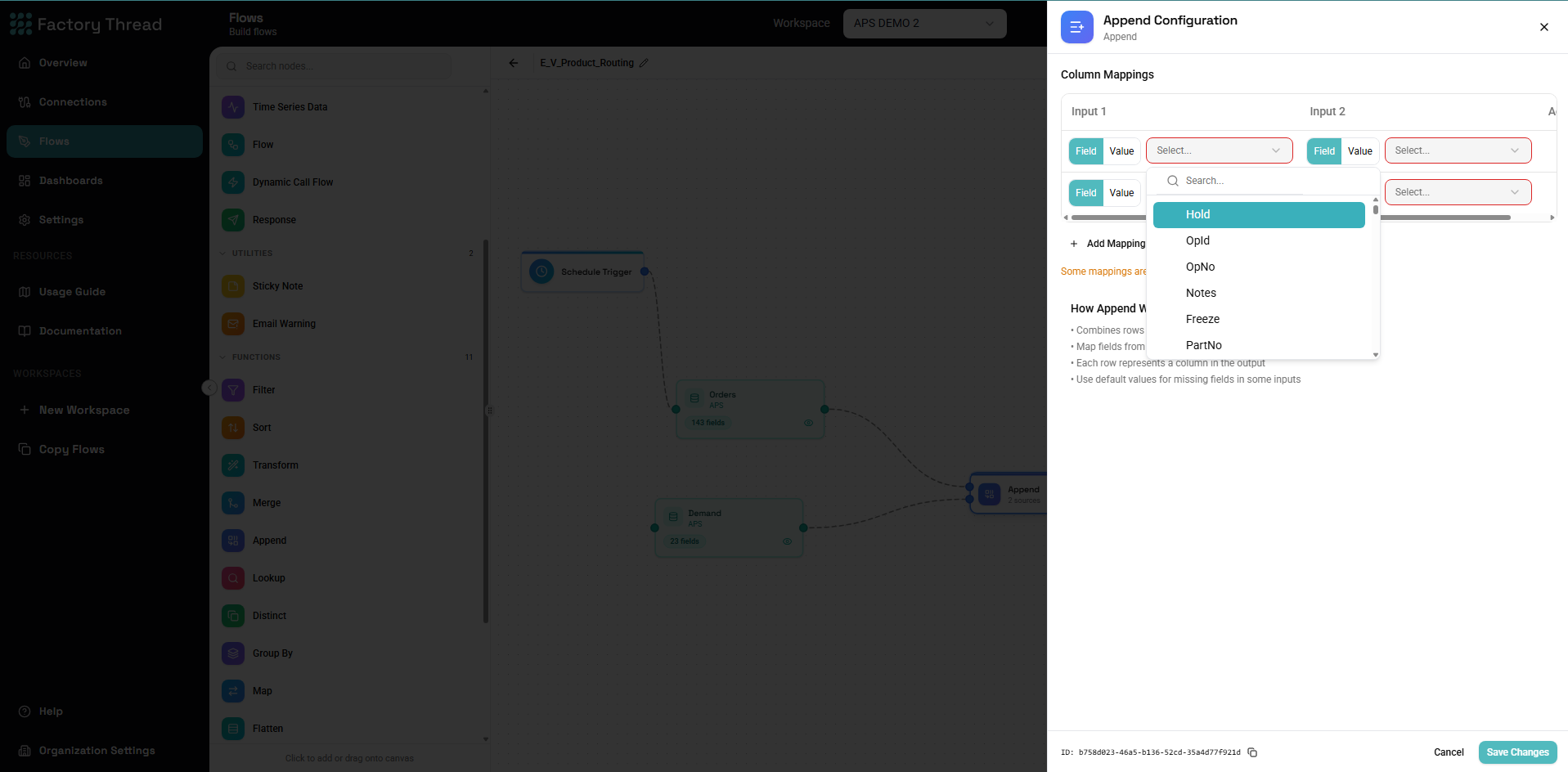
The Append function combines rows from multiple sources into a single output by stacking them vertically (like UNION in SQL). Unlike Merge, which combines columns based on keys, Append simply adds all rows from each source together.
How It Works
Append takes multiple inputs and:
- Stacks all rows from all sources vertically
- Aligns columns by name (and optionally by position)
- Creates a unified output schema
- Preserves all rows from all sources
The output row count equals the sum of all input row counts.
Adding an Append
- Drag Append from the Functions section of the Element Panel
- Connect two or more upstream sources to the Append node
- Click the Append node to configure options
Note: Append can accept multiple inputs (not limited to two like Merge).
Configuration Panel
Column Matching Mode
Specify how columns from different sources are aligned:
By Name
Columns are matched by their names:
- Columns with the same name are combined
- Columns unique to one source appear in output (with nulls for other sources)
- Case sensitivity depends on configuration
Example:
Source 1: ID, Name, Amount
Source 2: ID, Name, Status

Output: ID, Name, Amount, Status
(Amount is null for Source 2 rows, Status is null for Source 1 rows)
By Position
Columns are matched by their order:
- First column from each source becomes first output column
- Column names from the first source are used
- All sources must have the same number of columns
Example:
Source 1: CustomerID, CustomerName
Source 2: ProductID, ProductName

Output: CustomerID, CustomerName
(ProductID values go into CustomerID column)
Use with caution: By Position can cause data misalignment if schemas differ.
Include Source Indicator
Optionally add a column indicating which source each row came from:
Configuration:
- Field name:
_source(or custom name) - Values: Source names or numbers
Output with source indicator:
| ID | Name | _source |
|---|---|---|
| 1 | Alpha | Orders_2023 |
| 2 | Beta | Orders_2023 |
| 3 | Gamma | Orders_2024 |
| 4 | Delta | Orders_2024 |
Duplicate Handling
By default, Append keeps all rows including duplicates:
- Same row from multiple sources appears multiple times
- Use Distinct after Append to remove duplicates
Schema Alignment
Missing Columns
When a source is missing a column that others have:
- The column is added to output
- Null values fill rows from that source
Example:
Source 1: ID, Name, Email
Source 2: ID, Name

Output: ID, Name, Email
(Email is null for Source 2 rows)
Extra Columns
When a source has columns not in others:
- The column appears in output
- Null values fill rows from other sources
Type Conflicts
When sources have the same column name but different types:
- Types are coerced to a compatible type
- Text is the fallback if types are incompatible
Common Use Cases
Combining Historical Data
Scenario: Combine data from multiple time periods.
Sources:
- Orders_2022: OrderID, Date, Amount
- Orders_2023: OrderID, Date, Amount
- Orders_2024: OrderID, Date, Amount
Configuration:
- Column Matching: By Name
- Include Source: Yes (field: Year)
Output: All orders with a Year indicator
Consolidating Regional Data
Scenario: Combine identical structures from different regions.
Sources:
- Sales_East: ID, Product, Revenue, Region="East"
- Sales_West: ID, Product, Revenue, Region="West"
- Sales_Central: ID, Product, Revenue, Region="Central"
Configuration:
- Column Matching: By Name
Output: Combined sales from all regions
Union of Query Results
Scenario: Combine results from different queries/filters.
Sources:
- High Priority Items (Priority >= 1)
- Recently Modified Items (ModifiedDate > last week)
- Flagged Items (IsFlagged = true)
Configuration:
- Column Matching: By Name
- Use Distinct after to remove duplicates
Output: Items matching any of the criteria
Master Data Consolidation
Scenario: Combine customer records from multiple systems.
Sources:
- CRM Customers: ID, Name, Email, Phone
- ERP Customers: CustomerNo, CustomerName, EmailAddress
- Ecommerce: UserId, FullName, Email, Mobile
Preparation: Use Map on each source to standardize column names:
ID, Name, Email, Phone
Then Append: All customers from all systems
Building Reference Tables
Scenario: Create a reference table from multiple sources.
Sources:
- Active Products from inventory
- Discontinued Products from archive
- Pending Products from development
Configuration:
- Column Matching: By Name
- Include Source: Yes (field: ProductStatus)
Append vs. Merge
| Aspect | Append | Merge |
|---|---|---|
| Direction | Vertical (rows) | Horizontal (columns) |
| Inputs | 2 or more | Exactly 2 |
| Keys | Not needed | Required |
| Row count | Sum of inputs | Depends on join type |
| Column count | Union of columns | Sum of columns |
| Purpose | Stack similar data | Join related data |
Use Append when:
- Combining identical or similar structures
- Stacking data from multiple time periods
- Union-ing filtered subsets
Use Merge when:
- Joining related data by key
- Adding columns from another source
- Looking up related information
Handling Schema Differences
Preprocessing with Map
When sources have different structures, use Map first:
Source 1 original:
customer_id, first_name, last_name, email_address
Source 2 original:
CustNo, Name, Email
Map Source 1:
| Source | Output |
|---|---|
| customer_id | CustomerID |
| first_name & " " & last_name | Name |
| email_address |
Map Source 2:
| Source | Output |
|---|---|
| CustNo | CustomerID |
| Name | Name |
After Append: Unified structure with CustomerID, Name, Email
Handling Missing Columns
Source 1: Has all fields including optional ones Source 2: Missing some optional fields
Two approaches:
- Accept nulls: Simply Append; missing columns will be null
- Add defaults: Use Formula on Source 2 to add missing columns with default values
Type Normalization
Source 1: Amount is Number Source 2: Amount is Text (e.g., "$1,234.56")
Solution: Formula Source 2 before Append:
Amount = TO_NUMBER(Amount)
Source Order
The order of inputs affects:
- Row order: Rows from first source appear first
- Column names: If using By Position matching
- Source indicator values: Order determines source numbers
To control order:
- Arrange connections on the canvas
- Or add explicit ordering after Append
Performance Considerations
Filter Before Append
Filter data before appending to reduce volume:
Less efficient:
[All Data 2023] → ┐
                  ├→ [Append] → [Filter: Status=Active]
[All Data 2024] → ┘
More efficient:
[Data 2023: Status=Active] → ┐
                             ├→ [Append]
[Data 2024: Status=Active] → ┘
Limit Fields
Select only needed fields before appending:
[Source 1] → [Map: 5 fields] → ┐
                               ├→ [Append]
[Source 2] → [Map: 5 fields] → ┘
Large Appends
For very large datasets:
- Consider incremental processing
- Add limiting or pagination
- Monitor memory usage
Deduplication
Append doesn't remove duplicates automatically. If duplicates are a concern:
Using Distinct
[Source 1] → ┐
             ├→ [Append] → [Distinct on: ID]
[Source 2] → ┘
Using GroupBy
For more control (e.g., keep latest):
[Append] → [GroupBy: ID, keep MAX(ModifiedDate)]
Priority-Based Dedup
When one source should take priority:
- Add source indicator during Append
- Add priority number:
IF(_source = "Primary", 1, IF(_source = "Secondary", 2, 3)) - GroupBy on ID, keep MIN(Priority) or first row
Troubleshooting
Misaligned Data
Symptoms: Wrong values in columns after append
Causes:
- Using "By Position" with mismatched schemas
- Column names don't match as expected (case sensitivity)
Solutions:
- Use "By Name" matching
- Standardize column names with Map before Append
Unexpected Null Values
Symptoms: Nulls in columns that should have data
Causes:
- Column name mismatch between sources
- Column missing in one source
Solutions:
- Check exact column names (including case)
- Add missing columns with Formula before Append
Duplicate Rows
Symptoms: Same data appears multiple times
Causes:
- Same row exists in multiple sources
- Expected behavior for Append
Solutions:
- Use Distinct after Append
- Filter sources to avoid overlap
Type Errors
Symptoms: Error about incompatible types
Causes:
- Same column has different types in different sources
Solutions:
- Formula to common type before Append
- Check that text isn't being appended to numbers
Wrong Row Count
Symptoms: Fewer or more rows than expected
For fewer rows:
- Append shouldn't reduce rows; check for downstream filtering
For more rows:
- Expected: Append = sum of all inputs
- Check for unintended source connections
Examples
Monthly Data Consolidation
Goal: Combine 12 months of sales data
Sources:
- Sales_Jan through Sales_Dec (same schema)
Flow:
[Jan] ─┐
[Feb] ─┤
[Mar] ─┤
  ...  ├→ [Append] → [Formula: add Month] → [Output]
[Nov] ─┤
[Dec] ─┘
Formula: Extract month from date for analysis
Multi-System Customer List
Goal: Unified customer list from CRM, ERP, and web
Flow:
[CRM] → [Map: ID, Name, Email] ─┐
                                ├→ [Append with Source] → [Distinct on Email]
[ERP] → [Map: ID, Name, Email] ─┤
                                │
[Web] → [Map: ID, Name, Email] ─┘
Exception Report
Goal: Combine different types of exceptions
Sources:
- Overdue Invoices (filtered)
- Credit Limit Exceeded (filtered)
- Payment Failed (filtered)
Flow:
[Overdue] → [Formula: Type="Overdue"] ─┐
                                          ├→ [Append] → [Sort by Priority]
[Credit] → [Formula: Type="Credit"] ────┤
                                          │
[Payment] → [Formula: Type="Payment"] ──┘
Before/After Comparison
Goal: Compare current data with snapshot
Sources:
- Current Data: ID, Name, Value
- Snapshot Data: ID, Name, Value
Flow:
[Current] → [Formula: Period="Current"] ─┐
                                            ├→ [Append] → [GroupBy: ID]
[Snapshot] → [Formula: Period="Snapshot"] ┘
GroupBy: Compare Current vs Snapshot values
Next Steps
- Merge Function - Combine data horizontally with joins
- Distinct Function - Remove duplicates
- GroupBy Function - Aggregate combined data
- Building Flows - Complete workflow guide