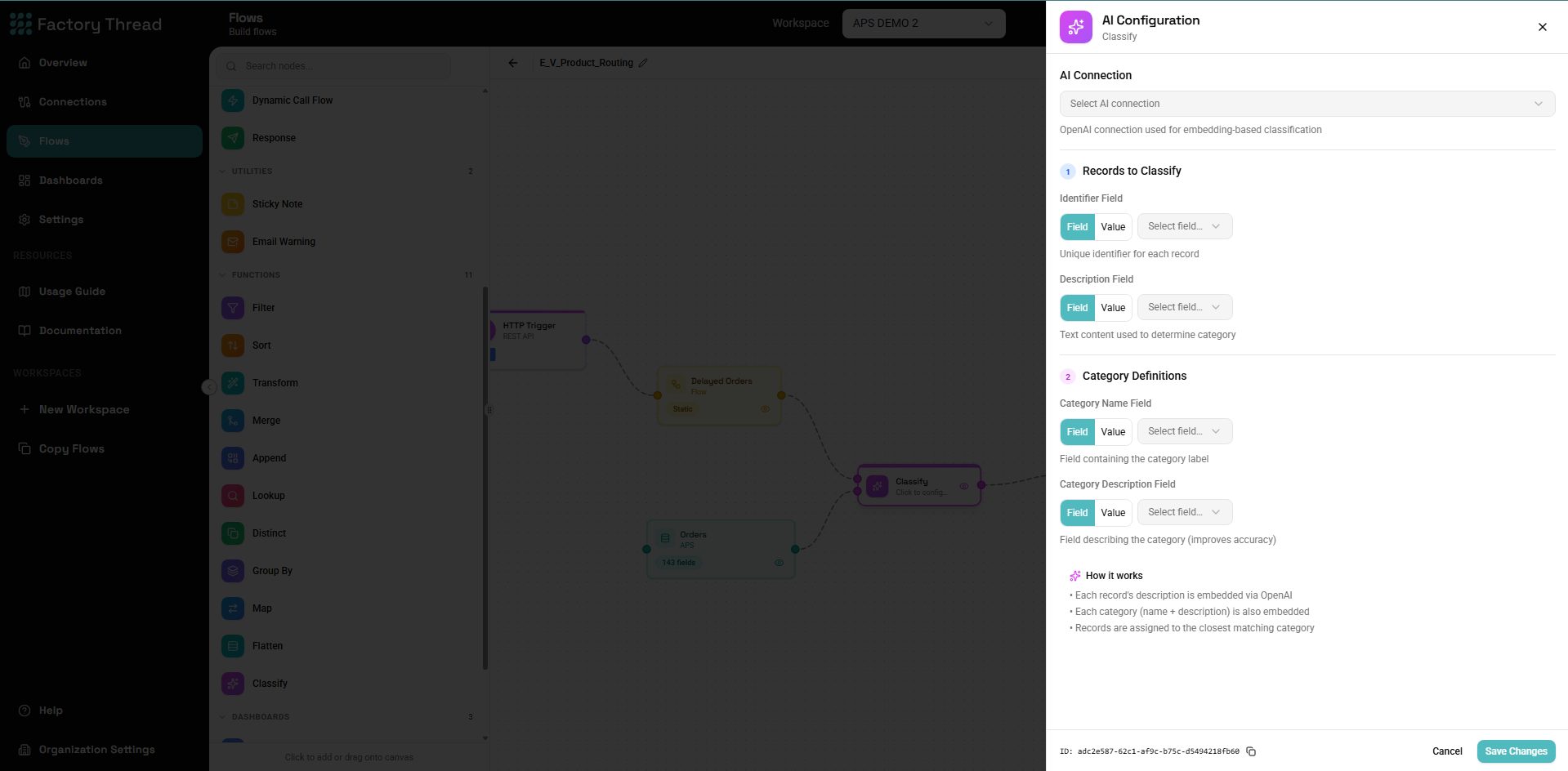
AI Node
The AI node integrates large language models (LLMs) into your workflows, enabling intelligent data processing, content generation, and analysis that goes beyond traditional programming.
How It Works
The AI node:
- Takes input data from your flow
- Constructs a prompt using your template and data
- Sends the request to an AI model (via configured connection)
- Parses the response and adds it to your data
- Continues the flow with AI-enriched data
Adding an AI Node
- Drag AI from the Inputs section of the Element Panel
- Connect it to your data flow
- Click the AI node to configure
- Select an AI connection and configure the prompt
Prerequisites
Before using AI nodes:
- Configure an AI connection in Connections
- Supported providers:
- OpenAI (GPT-4, GPT-3.5)
- Anthropic (Claude)
- Azure OpenAI
- Custom LLM endpoints
Configuration Panel
Connection Selection
Choose AI Connection: Select from configured AI connections. Each connection has:
- Provider and model
- API credentials
- Token limits
- Cost implications
Prompt Template
The prompt is the instruction sent to the AI model:
Static Prompt
Fixed prompt for all rows:
Classify the following customer feedback as positive, negative, or neutral.
Respond with only the classification word.
Feedback: ${feedback}
Dynamic Prompt
Use field references for data-driven prompts:
Analyze this product review:
Product: ${productName}
Review: ${reviewText}
Rating: ${rating}
Provide:
1. Sentiment (positive/negative/neutral)
2. Key themes (comma-separated)
3. Suggested improvements
System Prompt
Set context for the AI model:
System: You are a data analyst specializing in customer feedback.
Always respond in JSON format with consistent field names.
Input Mode
Choose how data is processed:
Row-by-Row (Default)
Each row processed individually:
How it works:
- AI called once per row
- Row fields available in prompt
- Result added to each row
Use when:
- Individual analysis needed
- Personalized responses
- Quality over speed
Cost consideration: More API calls, higher cost
Batch Mode
Multiple rows processed together:
How it works:
- All rows sent in one prompt
- AI processes batch
- Results distributed back
Use when:
- Comparative analysis
- Bulk processing
- Cost optimization
Cost consideration: Fewer API calls, watch token limits
Output Configuration
Define how AI responses are added to your data:
Output Field Name
Name for the AI result:
Single output:
Output Field: aiAnalysis
Result in data:
| original_data | aiAnalysis |
|---|---|
| ... | AI response here |
Response Parsing
Parse structured AI responses:
Text (default): Raw AI response as text field
JSON: Parse JSON response into multiple fields:
// AI response:
{ "sentiment": "positive", "score": 0.85, "themes": ["quality", "price"] }
// Parsed into fields:
sentiment, score, themes
Structured extraction: Define expected fields:
| Field | Type | Description |
|---|---|---|
| sentiment | Text | positive/negative/neutral |
| confidence | Number | 0-1 score |
| summary | Text | One sentence summary |
Model Parameters
Fine-tune AI behavior:
Temperature:
- 0 = Deterministic, consistent
- 0.7 = Balanced (default)
- 1.0 = Creative, varied
Max Tokens: Limit response length:
- 100 = Short responses
- 500 = Medium responses
- 2000 = Long responses
Top P: Controls response diversity (0-1)
Common Use Cases
Sentiment Analysis
Prompt:
Analyze the sentiment of this customer feedback.
Respond with JSON: {"sentiment": "positive|negative|neutral", "score": 0-1}
Feedback: ${customerFeedback}
Result:
| CustomerID | Feedback | sentiment | score |
|---|---|---|---|
| C001 | Great product! | positive | 0.92 |
| C002 | Arrived damaged | negative | 0.15 |
Text Classification
Prompt:
Classify this support ticket into one of these categories:
- billing
- technical
- shipping
- general
Ticket: ${ticketDescription}
Respond with only the category name.
Result:
| TicketID | Description | category |
|---|---|---|
| T001 | Can't login... | technical |
| T002 | Wrong charge... | billing |
Entity Extraction
Prompt:
Extract the following from this email:
- Person names
- Company names
- Dates mentioned
- Key topics
Email:
${emailBody}
Respond as JSON.
Result: Structured data extracted from unstructured email text.
Content Generation
Prompt:
Write a product description for:
Product: ${productName}
Category: ${category}
Features: ${features}
Target Audience: ${audience}
Keep it under 100 words, professional tone.
Result:
| ProductID | productName | generatedDescription |
|---|---|---|
| P001 | Widget Pro | AI-generated description... |
Data Enrichment
Prompt:
Given this company name, provide:
- Industry
- Company size (small/medium/large)
- Likely headquarters country
Company: ${companyName}
Respond as JSON.
Result:
| CompanyName | industry | size | country |
|---|---|---|---|
| Acme Corp | Manufacturing | large | USA |
Translation
Prompt:
Translate the following text to ${targetLanguage}.
Maintain the original tone and formatting.
Text: ${sourceText}
Result: Translated text in new column.
Summarization
Prompt:
Summarize this document in 3 bullet points:
${documentText}
Focus on key facts and conclusions.
Result: Concise summary added to each row.
Prompt Engineering Tips
Be Specific
Vague:
Analyze this data.
Specific:
Classify this customer review as positive, negative, or neutral.
Consider the overall tone, specific complaints or praise, and the star rating.
Respond with only one word: positive, negative, or neutral.
Use Examples
Few-shot prompting:
Classify product categories:
Product: "iPhone 15 Pro" → Category: Electronics
Product: "Running Shoes Nike" → Category: Apparel
Product: "Organic Coffee Beans" → Category: Food
Product: "${productName}" → Category:
Request Structured Output
For parsing:
Respond in this exact JSON format:
{
"category": "one of: A, B, C",
"confidence": number between 0 and 1,
"reasoning": "brief explanation"
}
Handle Edge Cases
Include guidance:
If the text is unclear or doesn't contain enough information,
respond with: {"category": "unknown", "confidence": 0}
Control Length
Be explicit:
Respond in exactly 3 sentences.
Keep your response under 50 words.
Provide a one-word answer.
Error Handling
API Errors
Common issues:
- Rate limiting
- Token limits exceeded
- Invalid API key
- Model unavailable
Handling:
- Built-in retry logic
- Error field added to failed rows
- Flow continues with errors captured
Parsing Errors
When JSON parsing fails:
- Raw response stored in text field
- Error message added
- Use Transform to handle post-processing
Robust prompt:
You MUST respond with valid JSON only. No explanations or text before/after.
{"field1": "value", "field2": "value"}
Unexpected Responses
Guard against:
- Empty responses
- Wrong format
- Hallucinated data
Post-processing:
[AI Node] → [Transform: validate response] → [Condition: valid?]
Performance Optimization
Reduce API Calls
Filter first:
[Entity] → [Filter: needs AI processing] → [AI Node]
Only send relevant rows to AI.
Batch when possible: Use batch mode for bulk operations.
Cache Results
For repeated lookups:
[Check cache] → [Condition: cached?]
├── True → [Use cached]
└── False → [AI] → [Store in cache]
Optimize Prompts
Shorter prompts:
- Reduce token usage
- Faster responses
- Lower costs
Token-efficient:
Classify as pos/neg/neu: ${text}
vs. Token-heavy:
Please carefully analyze the following text and determine
whether the overall sentiment expressed is positive, negative,
or neutral, considering all aspects...
Cost Management
Monitor Usage
Track AI node usage:
- Calls per flow
- Tokens per call
- Cost per execution
Set Limits
Token limits:
- Max input tokens
- Max output tokens
Call limits:
- Maximum rows to process
- Daily/monthly caps
Choose Models Wisely
| Model | Speed | Quality | Cost |
|---|---|---|---|
| GPT-3.5 | Fast | Good | Low |
| GPT-4 | Slower | Excellent | High |
| Claude Haiku | Fast | Good | Low |
| Claude Sonnet | Medium | Very Good | Medium |
Use cheaper models for simple tasks.
Troubleshooting
Empty Results
Possible causes:
- Prompt unclear
- Token limit too low
- API error
Solutions:
- Check prompt formatting
- Increase max tokens
- Review API logs
Inconsistent Output
Possible causes:
- High temperature
- Ambiguous prompt
- Variable input data
Solutions:
- Lower temperature to 0-0.3
- Add examples to prompt
- Normalize input data
Slow Performance
Possible causes:
- Row-by-row mode
- Complex prompts
- Slow model
Solutions:
- Use batch mode
- Simplify prompts
- Consider faster model
High Costs
Possible causes:
- Many API calls
- Long prompts/responses
- Expensive model
Solutions:
- Batch processing
- Optimize prompts
- Use cheaper model for simple tasks
Examples
Customer Feedback Analysis
Flow:
[Feedback Entity] → [AI: Sentiment + Themes] → [Response]
Prompt:
Analyze this customer feedback:
Feedback: ${feedbackText}
Provide JSON:
{
"sentiment": "positive|negative|neutral",
"score": 0-100,
"themes": ["array of themes"],
"actionItems": ["suggested actions"]
}
Invoice Data Extraction
Flow:
[Invoice Documents] → [AI: Extract Data] → [Transform: validate] → [Database]
Prompt:
Extract invoice data from this text:
${invoiceText}
Return JSON:
{
"invoiceNumber": "string",
"date": "YYYY-MM-DD",
"vendor": "company name",
"total": number,
"lineItems": [{"description": "", "amount": number}]
}
Email Categorization
Flow:
[Emails] → [AI: Categorize] → [Condition by category] → [Route to handlers]
Prompt:
Categorize this email:
From: ${from}
Subject: ${subject}
Body: ${body}
Categories: sales_inquiry, support_request, complaint, spam, other
Respond: {"category": "...", "priority": "high|medium|low", "summary": "one line"}
Next Steps
- AI Connections - Configure AI providers
- Transform Function - Post-process AI results
- Condition Function - Route based on AI output
- Building Flows - Complete workflow guide