Filter Function
The Filter function includes or excludes rows from your data based on conditions you define. It's one of the most commonly used functions for narrowing down data to exactly what you need.

How It Works
The Filter evaluates each row against your conditions:
- Matching rows pass through to the next node
- Non-matching rows are discarded
Data flows through unchanged - no columns are added, removed, or modified. Only the number of rows changes.
Adding a Filter
- Drag Filter from the Functions section of the Element Panel
- Or click on the canvas and select Filter from the quick menu
- Connect it to your data source
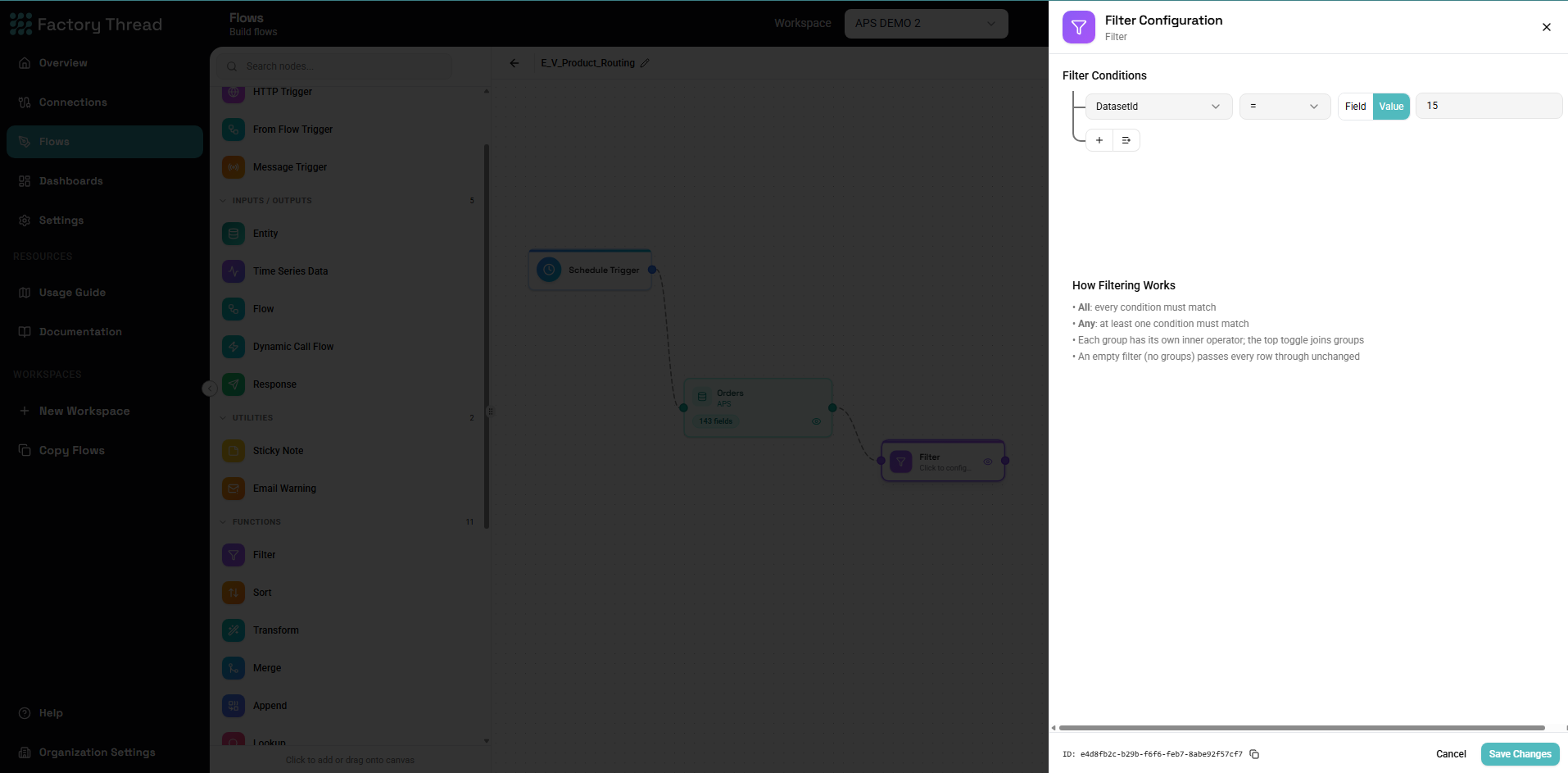
- Click the Filter node to configure conditions
Configuration Panel
Condition Builder
The visual condition builder helps you create filter logic without writing code.
Adding a Condition
- Click Add Condition
- Select a Field from the dropdown
- Choose an Operator
- Enter or select a Value
Condition Components
Field The column to evaluate. The dropdown shows all available fields from upstream nodes with their data types.
Operator The comparison to perform. Available operators depend on the field's data type.
Value What to compare against. Can be:
- A literal value (text, number, date)
- Another field reference
- A parameter from a trigger
- An expression
Operators by Data Type
Text Operators
| Operator | Description | Example |
|---|---|---|
| Equals | Exact match (case-sensitive) | Name = "John" |
| Not equals | Does not match | Status ≠ "Deleted" |
| Contains | Text includes substring | Email contains "@gmail" |
| Not contains | Text excludes substring | Notes not contains "error" |
| Starts with | Text begins with | Code starts with "PRD-" |
| Ends with | Text ends with | File ends with ".pdf" |
| Is empty | Null or empty string | Description is empty |
| Is not empty | Has a value | Name is not empty |
| In | Matches any in list | Status in ["Active", "Pending"] |
| Not in | Matches none in list | Type not in ["Test", "Demo"] |
| Matches pattern | Regex match | Phone matches "^\d3-\d4$" |
Number Operators
| Operator | Description | Example |
|---|---|---|
| Equals | Exact numeric match | Quantity = 100 |
| Not equals | Does not equal | Amount ≠ 0 |
| Greater than | Larger than value | Price > 50 |
| Greater or equal | At least value | Score >= 80 |
| Less than | Smaller than value | Age < 18 |
| Less or equal | At most value | Discount <= 0.25 |
| Between | Within range (inclusive) | Rating between 3 and 5 |
| Not between | Outside range | Value not between -1 and 1 |
| Is null | No value | Amount is null |
| Is not null | Has a value | Price is not null |
| In | Matches any in list | Priority in [1, 2, 3] |
Date Operators
| Operator | Description | Example |
|---|---|---|
| Equals | Same date | OrderDate = 2024-01-15 |
| Not equals | Different date | Created ≠ today |
| Before | Earlier than | DueDate before today |
| After | Later than | StartDate after 2024-01-01 |
| On or before | Same or earlier | EndDate on or before 2024-12-31 |
| On or after | Same or later | HireDate on or after 2020-01-01 |
| Between | Within date range | Created between 2024-01-01 and 2024-03-31 |
| Is null | No date value | CompletedDate is null |
| Is not null | Has date value | ShippedDate is not null |
Special Date Values:
today- Current dateyesterday- Previous datetomorrow- Next datestartOfWeek- Beginning of current weekstartOfMonth- First day of current monthstartOfYear- January 1st of current year
Boolean Operators
| Operator | Description | Example |
|---|---|---|
| Is true | Value is true | IsActive is true |
| Is false | Value is false | IsDeleted is false |
| Is null | No boolean value | HasOptedIn is null |
Combining Conditions
AND Logic
All conditions must be true for the row to pass:
Status = "Active"
AND
Amount > 1000
AND
Region = "West"
Only rows meeting ALL three criteria pass through.
OR Logic
Any condition can be true for the row to pass:
Status = "Active"
OR
Status = "Pending"
OR
Priority = "High"
Rows meeting ANY of the three criteria pass through.
Mixed Logic
Combine AND/OR with groups:
(Status = "Active" OR Status = "Pending")
AND
(Region = "East" OR Region = "West")
AND
Amount > 500
This finds active/pending items in East/West regions over $500.
Creating Groups
- Click Add Group
- Set group logic (AND/OR)
- Add conditions within the group
- Nest groups for complex logic
Comparing to Fields
Instead of literal values, compare fields to each other:
Example: Find items where actual exceeds budget
ActualAmount > BudgetAmount
Example: Find orders shipped after due date
ShipDate > DueDate
Using Parameters
Reference trigger parameters in conditions:
From HTTP Trigger:
CustomerID = ${customerId}
Region in ${selectedRegions}
From Schedule Trigger:
ProcessedDate >= ${lastRunDate}
Using Expressions
For dynamic values, use expressions:
Relative dates:
OrderDate > DATEADD(today, -30, "day")
Calculated comparisons:
Amount > ${baseAmount} * 1.1
Common Filter Patterns
Filter by Status
Active items only:
Status = "Active"
Exclude deleted:
IsDeleted = false
OR
IsDeleted is null
Filter by Date Range
Last 30 days:
CreatedDate >= DATEADD(today, -30, "day")
Specific month:
OrderDate >= 2024-01-01
AND
OrderDate < 2024-02-01
Year to date:
TransactionDate >= startOfYear
AND
TransactionDate <= today
Filter Null Values
Remove nulls:
ImportantField is not null
Find nulls (for cleanup):
RequiredField is null
Filter by List
Specific regions:
Region in ["North", "South", "East", "West"]
Exclude test data:
CustomerType not in ["Test", "Demo", "Internal"]
Numeric Ranges
High-value orders:
OrderTotal >= 1000
Outlier detection:
Value < 0
OR
Value > 10000
Text Patterns
Email domain:
Email ends with "@company.com"
Product codes:
SKU starts with "PROD-"
AND
SKU not contains "DISC"
Advanced Techniques
Null-Safe Comparisons
When fields might be null:
Risky:
Amount > 100 # Nulls might behave unexpectedly
Safe:
Amount is not null
AND
Amount > 100
Case-Insensitive Matching
The Equals operator is case-sensitive. For case-insensitive:
Option 1: Use Contains (if acceptable)
LOWER(Status) contains "active"
Option 2: List all variations
Status in ["Active", "ACTIVE", "active"]
Filtering Before Joins
Filter early for better performance:
Good: Filter → Merge
- Reduces data before expensive join
- Faster execution
Avoid: Merge → Filter
- Joins all data first
- Then filters (slower)
Multiple Passes
For complex logic, use multiple Filter nodes:
[Entity] → [Filter: Active] → [Filter: High Value] → [Filter: Recent]
This creates a clear pipeline of conditions.
Best Practices
Filter Early
Apply filters as early as possible in your workflow:
- Reduces data volume for subsequent operations
- Improves performance
- Uses less memory
Be Specific
Precise conditions prevent unexpected results:
Vague:
Amount > 0
Specific:
Amount > 0
AND
Amount is not null
AND
Status = "Completed"
Test Edge Cases
Verify your filter handles:
- Null values
- Empty strings
- Boundary values (exactly equal to threshold)
- Special characters in text
Document Complex Logic
Use meaningful descriptions:
- Name the Filter node: "Filter: Active Premium Customers"
- Add comments about business rules
Preview Often
After configuring:
- Click the Filter node
- Click Preview
- Verify correct rows pass through
- Check row count matches expectations
Troubleshooting
No Rows Pass Through
Too restrictive:
- Review each condition
- Check for AND logic that's impossible to satisfy
- Verify field values exist in data
Data type mismatch:
- "100" (text) ≠ 100 (number)
- Check field types in schema
Null handling:
- Nulls don't match most conditions
- Add explicit null handling
Too Many Rows Pass Through
Too loose:
- Check OR conditions aren't too broad
- Verify all conditions are being applied
- Look for always-true conditions
Wrong field:
- Ensure you selected the correct column
- Verify field values are what you expect
Unexpected Results
Case sensitivity:
- "Active" ≠ "active"
- Use appropriate case or case-insensitive patterns
Whitespace:
- " Value" ≠ "Value"
- Use TRIM() if needed
Date formats:
- Ensure dates are parsed correctly
- Check timezone handling
Performance Tips
Index-Friendly Filters
If filtering database data, use conditions that can use indexes:
- Equality conditions (
=) - Range conditions (
>,<,BETWEEN) - Prefix matches (starts with)
Avoid:
- Functions on columns (LOWER(field) = ...)
- Middle/suffix matches (contains, ends with)
Limit Before Filter
For very large tables:
- Use Entity node with row limit
- Then apply Filter
- Expand limit once logic is confirmed
Multiple Conditions vs Multiple Filters
One Filter with multiple conditions:
- Usually more efficient
- All conditions evaluated together
Multiple Filter nodes:
- Easier to debug
- Better for very complex logic
- Slight overhead
Examples
E-commerce: Recent High-Value Orders
OrderDate >= DATEADD(today, -7, "day")
AND
OrderTotal >= 500
AND
Status in ["Confirmed", "Processing", "Shipped"]
HR: Eligible Employees
EmploymentType = "Full-Time"
AND
HireDate <= DATEADD(today, -90, "day")
AND
Status = "Active"
AND
Department not in ["Contractors", "Interns"]
Inventory: Low Stock Alerts
QuantityOnHand < ReorderPoint
AND
IsActive = true
AND
SupplierStatus = "Active"
Financial: Transactions for Audit
(TransactionType = "Refund" AND Amount > 1000)
OR
(TransactionType = "Adjustment")
OR
(ApprovalStatus = "Override")
Next Steps
- Transform Function - Add calculated fields
- Condition Function - Branch based on conditions
- Merge Function - Combine filtered data
- Building Flows - Complete workflows