Distinct Function
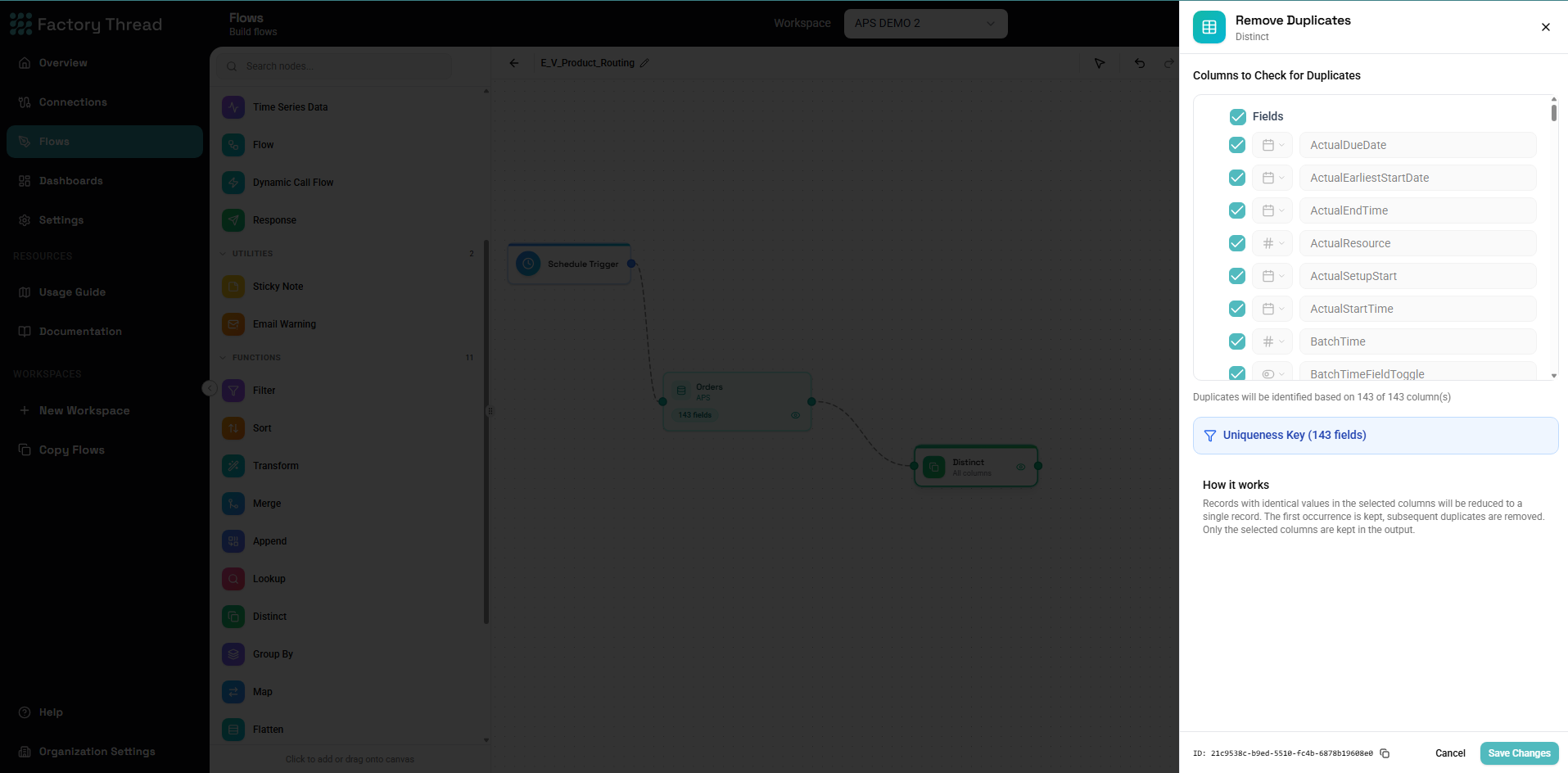
The Distinct function removes duplicate rows from your data based on specified fields. It ensures each unique combination of key values appears only once in the output.
How It Works
Distinct processes your data by:
- Identifying rows with matching values in key fields
- Keeping one row per unique combination
- Discarding duplicate rows
- Preserving all columns from the kept rows
Example:
Input: 100 rows with 30 duplicates
Output: 70 unique rows
Adding a Distinct
- Drag Distinct from the Functions section of the Element Panel
- Connect it to your data source
- Click the Distinct node to configure key fields
Configuration Panel
Key Fields
Specify which fields determine uniqueness:
All Fields
If no fields specified, all fields are compared:
- Rows must match in every column to be duplicates
- Most restrictive deduplication
Selected Fields
Choose specific fields for uniqueness:
Single field:
- Key: CustomerID
- Result: One row per unique CustomerID
Multiple fields:
- Keys: CustomerID, OrderDate
- Result: One row per unique CustomerID-OrderDate combination
Keep Option
When duplicates exist, which row to keep:
First
Keeps the first occurrence (default):
- First row encountered in order
- Subsequent duplicates discarded
Use when:
- Order matters and first is preferred
- Data is sorted chronologically (keep oldest)
- Original entry is most accurate
Last
Keeps the last occurrence:
- Earlier duplicates discarded
- Last row encountered is kept
Use when:
- Data is sorted chronologically (keep newest)
- Latest update is most accurate
- Recent values override older ones
Output Fields
All fields from the kept row are included in output:
- Key fields are included
- Non-key fields from the kept row are preserved
- No aggregation occurs (use Group By for that)
Common Use Cases
Remove Exact Duplicates
Scenario: Data has complete duplicate rows
Configuration:
- Key Fields: (All fields - leave empty)
- Keep: First
Result: One copy of each unique row
Unique Customers
Scenario: Customer list has repeat entries
Configuration:
- Key Fields: CustomerID
- Keep: First
Result: One row per customer
Latest Record Per Entity
Scenario: Keep most recent record for each item
Preparation: Sort by ModifiedDate DESC
Configuration:
- Key Fields: ItemID
- Keep: First (after sort, first = most recent)
Result: Most recently modified record per item
Unique Email Addresses
Scenario: Mailing list has duplicate emails
Configuration:
- Key Fields: Email
- Keep: First
Result: One row per unique email
Unique Combinations
Scenario: Find unique product-customer pairs
Configuration:
- Key Fields: ProductID, CustomerID
- Keep: First
Result: One row per product-customer combination
Distinct vs. Group By
| Aspect | Distinct | Group By |
|---|---|---|
| Purpose | Remove duplicates | Aggregate data |
| Output columns | All from kept row | Grouping + aggregates |
| Calculations | None | SUM, COUNT, AVG, etc. |
| One row per | Unique key combination | Unique key combination |
| Non-key fields | From kept row | Dropped (unless aggregated) |
Use Distinct when:
- You want to remove duplicates
- You need to keep original field values
- No calculations are needed
Use Group By when:
- You need to aggregate values
- Calculating counts, sums, averages
- Creating summary statistics
Preprocessing for Distinct
Normalize Before Deduplicating
Formula to standardize values before Distinct:
Case normalization:
Email = LOWER(Email)
Name = UPPER(Name)
Whitespace removal:
CustomerName = TRIM(CustomerName)
Format standardization:
Phone = TRIM(Phone)
Then apply Distinct on normalized fields.
Sort Before Distinct
Control which duplicate is kept:
Keep newest:
[Source] → [Sort: ModifiedDate DESC] → [Distinct: ID, Keep First]
Keep highest value:
[Source] → [Sort: Score DESC] → [Distinct: UserID, Keep First]
Keep by priority:
[Source] → [Formula: Priority = IF(Source = "Primary", 1, IF(Source = "Secondary", 2, 3))]
         → [Sort: Priority ASC]
         → [Distinct: RecordID, Keep First]
Complex Deduplication
Multi-Stage Deduplication
When different duplicate types exist:
Stage 1: Exact duplicates
[Source] → [Distinct: All Fields] → [Step 1 Result]
Stage 2: Logical duplicates
[Step 1 Result] → [Formula: Normalize fields]
                → [Distinct: NormalizedKey]
                → [Final Result]
Fuzzy Matching
Distinct only handles exact matches. For near-duplicates:
- Formula to create matching keys
- Apply Distinct on transformed keys
Example: Similar company names
Formula: MatchKey = UPPER(TRIM(CompanyName))
// "Acme Corp", "ACME CORP", " Acme Corp " all become "ACME CORP"

Distinct on: MatchKey
Prioritized Deduplication
Keep the "best" record based on criteria:
[Source] → [Formula: Calculate priority score]
         → [Sort: ID, PriorityScore DESC]
         → [Distinct: ID, Keep First]
Priority Formula example:
Priority = (
  IF(HasEmail, 10, 0) +
  IF(HasPhone, 5, 0) +
  IF(IsVerified, 20, 0) +
  IF(Source = "Primary", 15, 0)
)
NULL Handling
NULLs in Key Fields
When key fields contain null:
- All nulls are treated as equal
- Multiple null rows become one
- NULL matches NULL
To handle differently:
Formula before Distinct:
KeyField = COALESCE(KeyField, "NO_VALUE")
NULLs in Non-Key Fields
Non-key field nulls don't affect deduplication:
- Kept row may have nulls
- Consider which row to keep based on data completeness
Performance Considerations
Early Deduplication
Apply Distinct early to reduce data volume:
More efficient:
[Entity] → [Distinct: CustomerID] → [Formula] → [Merge] → [Output]
Less efficient:
[Entity] → [Formula] → [Merge] → [Distinct: CustomerID] → [Output]
Key Field Count
Fewer key fields = more duplicates removed:
- Each additional key field reduces duplicate matches
- Use minimum fields needed for your definition of "unique"
Large Datasets
For very large datasets:
- Filter first to reduce volume
- Consider if source-level deduplication is possible
- Monitor memory usage
Troubleshooting
No Duplicates Removed
Possible causes:
-
Data is already unique
- Verify expected duplicates exist
- Preview source data
-
Wrong key fields
- Check field selection
- Consider if all fields is appropriate
-
Values differ unexpectedly
- Check for whitespace differences
- Check case sensitivity
- Check data types
Debugging:
[Source] → [GroupBy: Key Fields, COUNT] → [Filter: COUNT > 1]
This shows which combinations have duplicates.
Wrong Row Kept
Possible causes:
-
Keep First vs Keep Last incorrect
- Verify which option is selected
-
Source order not as expected
- Add explicit Sort before Distinct
-
Sort order incorrect
- Verify sort direction (ASC vs DESC)
Too Many Rows Removed
Possible causes:
-
Key fields too few
- Add additional fields to key
- More fields = fewer matches
-
Overly aggressive normalization
- Formula is creating too many matches
- Check normalization logic
Memory Issues
Symptoms: Slow or failing on large data
Solutions:
- Filter source data first
- Apply at database level if possible
- Process in batches
Examples
Mailing List Cleanup
Goal: Unique contacts by email
Flow:
[All Contacts] → [Formula: Email = LOWER(TRIM(Email))]
               → [Distinct: Email, Keep First]
               → [Output: Cleaned Mailing List]
Customer Master
Goal: Latest customer record
Flow:
[Customer Records] → [Sort: CustomerID, LastModified DESC]
                   → [Distinct: CustomerID, Keep First]
                   → [Output: Current Customer Master]
Product Catalog
Goal: One row per SKU with all data
Flow:
[Product Data] → [Distinct: SKU]
               → [Output: Product Catalog]
Event Deduplication
Goal: Remove duplicate event submissions
Flow:
[Event Submissions] → [Distinct: EventID, UserID, Timestamp]
                    → [Output: Unique Events]
Invoice Processing
Goal: Unique invoices, preferring matched status
Flow:
[All Invoices] → [Formula: Priority = IF(Status = "Matched", 1, 2)]
               → [Sort: InvoiceNo, Priority ASC]
               → [Distinct: InvoiceNo, Keep First]
               → [Output: Unique Invoices]
Next Steps
- Group By Function - Aggregate while deduplicating
- Filter Function - Filter before deduplicating
- Formula - Normalize before deduplicating
- Building Flows - Complete workflow guide