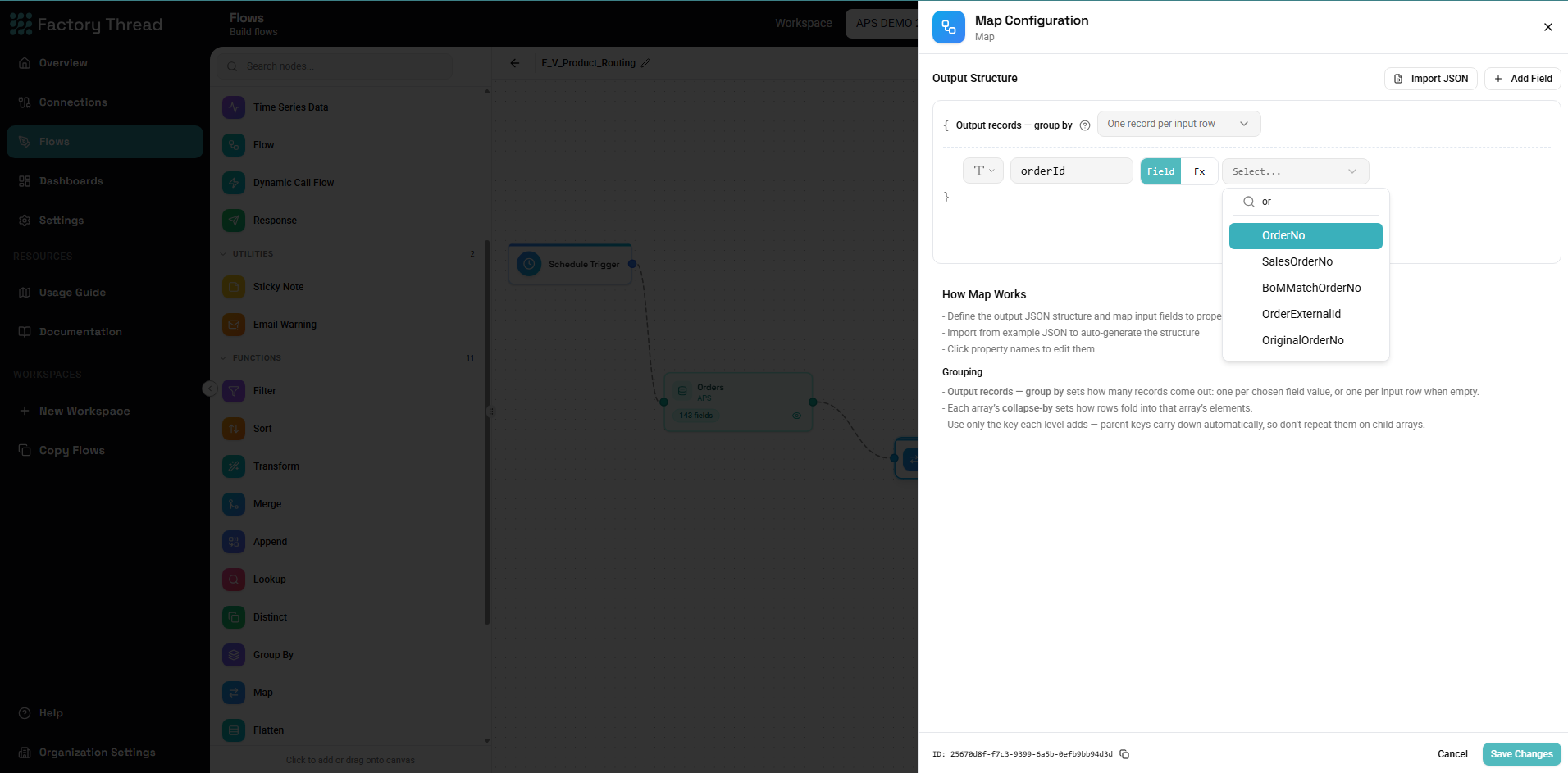
Map Function

The Map function selects which fields to include in your output, optionally renaming them. It's essential for controlling your data structure, reducing payload size, and creating clean outputs.

How It Works

Map processes each row and:

  • Includes only selected fields in the output
  • Renames fields according to your mappings
  • Reorders fields based on the mapping sequence
  • Removes all other fields

Unlike Transform, Map doesn't create calculated fields - it simply selects and renames existing fields.

Adding a Map

  1. Drag Map from the Functions section of the Element Panel
  2. Or click on the canvas and select Map from the quick menu
  3. Connect it to your data source
  4. Click the Map node to configure field mappings

Configuration Panel

Field Mappings

The Map panel displays a mapping table with two columns:

Source FieldOutput Field
Original field nameNew field name (or same)

Adding Field Mappings

Method 1: Add Individual Fields

  1. Click Add Field
  2. Select a source field from the dropdown
  3. Enter the output field name (defaults to source name)

Method 2: Add All Fields

  1. Click Add All Fields
  2. All upstream fields are added with their original names
  3. Remove or rename fields as needed

Method 3: Drag and Drop

  1. Drag fields from the available fields list
  2. Drop them into the mapping area
  3. Reorder by dragging within the list

Field Selection

Available Fields Panel

The left side shows all available fields from upstream nodes:

  • Field name
  • Data type icon
  • Source node (if from multiple sources)

Click a field or drag it to add it to your mapping.

Selected Fields Panel

The right side shows your current mapping:

  • Source field name
  • Arrow indicator
  • Output field name (editable)
  • Remove button

Renaming Fields

To rename a field:

  1. Add the field to your mapping
  2. Click the output field name
  3. Type the new name
  4. Press Enter or click away

Example:

SourceOutput
first_nameFirstName
last_nameLastName
email_addressEmail
created_dateCreatedAt

Reordering Fields

Field order in the output matches the mapping order:

  1. Drag a field row up or down
  2. Or use the move buttons (if available)

The first field in your mapping is the first field in output.

Common Use Cases

Selecting a Subset of Fields

Scenario: Your entity has 50 columns, but you only need 5.

Before Map:

ID, FirstName, MiddleName, LastName, Email, Phone, Address1, Address2,
City, State, Zip, Country, DateOfBirth, SSN, AccountNumber, Balance,
CreditLimit, Status, CreatedDate, ModifiedDate, CreatedBy, ModifiedBy,
Department, Manager, Title, HireDate, TermDate, Salary, Bonus, ...

Map Configuration:

SourceOutput
IDID
FirstNameFirstName
LastNameLastName
EmailEmail
StatusStatus

After Map:

ID, FirstName, LastName, Email, Status

Renaming for External Systems

Scenario: Destination system expects specific field names.

Map Configuration:

SourceOutput
CustomerIDcust_id
CustomerNamename
EmailAddressemail
PhoneNumberphone
CreateDatecreated_at

Standardizing Field Names

Scenario: Different sources use different naming conventions.

Source 1 fields: first_name, last_name, email_addr Source 2 fields: FirstName, LastName, EmailAddress

Map for both sources:

SourceOutput
(varies)FirstName
(varies)LastName
(varies)Email

Creating API Responses

Scenario: API should return specific JSON structure.

Map Configuration:

SourceOutput
product_idid
product_namename
unit_priceprice
quantity_in_stockstock
is_availableavailable

Output JSON:

{
"id": "PRD-001",
"name": "Widget",
"price": 29.99,
"stock": 150,
"available": true
}

Removing Sensitive Data

Scenario: Exclude sensitive fields before sharing.

Original fields: ID, Name, SSN, AccountNumber, Balance

Map Configuration:

SourceOutput
IDID
NameName
BalanceBalance

Output: ID, Name, Balance (SSN and AccountNumber removed)

Field Naming Guidelines

Allowed Characters

Output field names:

  • Letters (a-z, A-Z)
  • Numbers (0-9)
  • Underscores (_)
  • Should start with a letter

Naming Conventions

camelCase:

firstName, lastName, orderDate, totalAmount

PascalCase:

FirstName, LastName, OrderDate, TotalAmount

snake_case:

first_name, last_name, order_date, total_amount

kebab-case: (not recommended for fields)

first-name, last-name, order-date, total-amount

Best Practices for Names

Be descriptive:

// Good
CustomerName, OrderTotal, ShipDate

// Avoid
CN, OT, SD

Be consistent:

// Pick one style
firstName, lastName, emailAddress // All camelCase
OR
FirstName, LastName, EmailAddress // All PascalCase

Avoid spaces and special characters:

// Good
TotalAmount, FullName, EmailAddress

// Avoid
"Total Amount", Full-Name, Email@Address

Map vs. Transform

FeatureMapTransform
Select fieldsYesNo
Rename fieldsYesNo
Reorder fieldsYesNo
Calculate new valuesNoYes
Modify valuesNoYes
Use expressionsNoYes

Use Map when:

  • You only need specific fields
  • You need to rename fields
  • You're preparing data for export
  • You want to clean up your schema

Use Transform when:

  • You need calculated fields
  • You need to modify values
  • You need to use functions or expressions

Use both together:

  1. Transform to create calculated fields
  2. Map to select and rename the final output

Working with Multiple Sources

After a Merge or Append:

  • Fields may have prefixes (e.g., source1.ID, source2.ID)
  • Use Map to select which version to keep
  • Rename to remove prefixes

Example after Merge:

SourceOutput
orders.OrderIDOrderID
orders.CustomerIDCustomerID
customers.CustomerNameCustomerName
customers.EmailEmail
orders.OrderDateOrderDate
orders.TotalOrderTotal

Preserving Data Types

Map preserves the original data type of each field:

  • Text fields remain text
  • Numbers remain numbers
  • Dates remain dates
  • Booleans remain booleans

If you need to convert types, use Transform before or after Map.

Empty and Null Values

Map behavior for special values:

  • Null values remain null in output
  • Empty strings remain empty
  • Missing fields cause an error (field must exist)

If a field might not exist, add it conditionally or use Transform with COALESCE first.

Performance Considerations

Select Early

Apply Map early in your flow to:

  • Reduce data volume for downstream operations
  • Improve performance of merges and transforms
  • Minimize memory usage

Example:

[Entity: All 50 columns] → [Map: Select 5] → [Transform] → [Filter] → [Output]

Field Count Impact

More fields = more processing:

  • Large row widths slow down operations
  • Network transfer increases with field count
  • Storage requirements grow

Select only the fields you actually need.

Troubleshooting

"Field not found"

Cause: Source field doesn't exist in upstream data.

Solutions:

  • Check spelling of field name
  • Verify the field exists in the source
  • If field comes from a join, ensure it's included

"Duplicate field name"

Cause: Two mappings have the same output name.

Solutions:

  • Give each output field a unique name
  • Remove duplicate mappings
  • Rename one of the conflicting fields

"Empty output"

Cause: No field mappings defined.

Solutions:

  • Add at least one field mapping
  • Use "Add All Fields" and then remove unwanted ones

Fields in Wrong Order

Cause: Mapping order determines output order.

Solutions:

  • Drag fields to reorder in the mapping panel
  • Remove and re-add fields in desired order

Patterns and Examples

API Response Preparation

Scenario: Format data for a REST API response.

Map Configuration:

SourceOutput
product_idid
product_namename
descriptiondesc
unit_priceprice
inventory_countinventory
category_namecategory
is_activeactive
image_urlimage

Database to Spreadsheet

Scenario: Export to a user-friendly spreadsheet.

Map Configuration:

SourceOutput
EMP_IDEmployee ID
FNAMEFirst Name
LNAMELast Name
EMAIL_ADDREmail
HIRE_DTHire Date
DEPT_NAMEDepartment
MGR_NAMEManager

Integration Data Mapping

Scenario: Map fields to destination system requirements.

Source fields (SAP):

KUNNR, NAME1, NAME2, ORT01, PSTLZ, LAND1

Map to target system:

SourceOutput
KUNNRCustomerNumber
NAME1CompanyName
NAME2ContactName
ORT01City
PSTLZPostalCode
LAND1CountryCode

Removing Computed Fields

Scenario: After Transform, remove intermediate calculations.

After Transform fields:

ProductID, Name, Price, Quantity, Subtotal, TaxRate,
TaxAmount, Discount, DiscountAmount, Total

Map to final output:

SourceOutput
ProductIDProductID
NameName
QuantityQuantity
TotalTotal

Next Steps