Utility Nodes
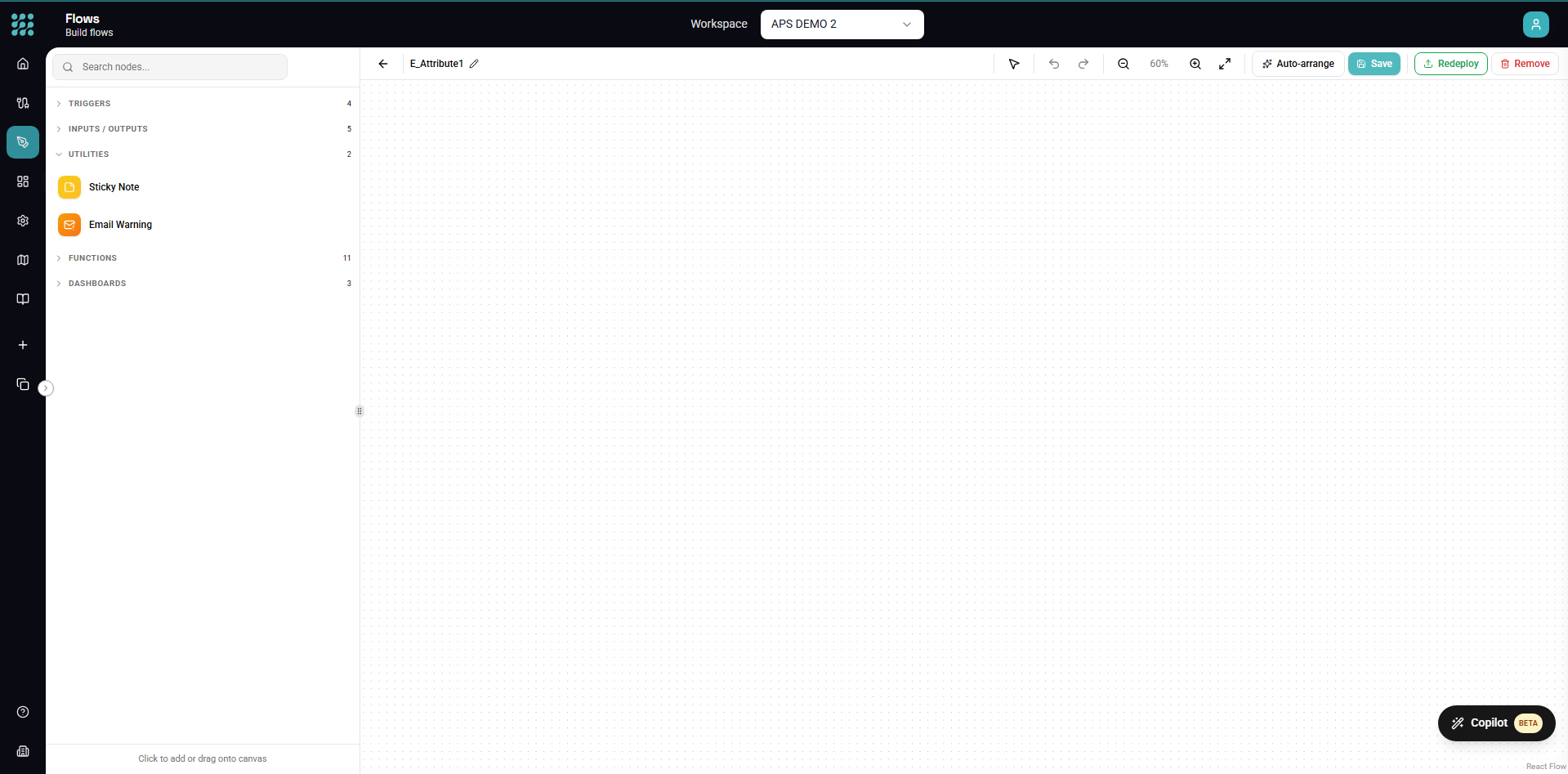
The Utilities group in the element panel holds nodes that aren't part of the data transformation itself — they help you document a flow or alert someone about its results. There are two: Sticky Note and Email Warning.
Sticky Note
A Sticky Note is a free-floating note you drop on the canvas to explain what a flow (or part of a flow) does. It's purely visual — it has no inputs or outputs and never affects execution.
Adding a note
Drag Sticky Note from the Utilities group onto the canvas, then double-click it to start typing.
Formatting
Notes support lightweight Markdown, converted to formatted text when you click away:
| Type this | You get |
|---|---|
# Heading (through ######) | Headings |
- item or * item | Bullet list |
1. item | Numbered list |
> quote | Blockquote |
**bold** | Bold |
*italic* | Italic |
Double-click again to edit; the formatted text turns back into its Markdown source so you can change it.
Color and size
- Color — when the note is selected, a row of swatches appears above it. Choose from yellow (default), blue, green, pink, purple, or orange to colour-code areas of a large flow.
- Size — drag the handles on a selected note to resize it (notes have a minimum size so text stays readable).
When to use it
- Explain why a flow is built a certain way for teammates.
- Label sections of a large canvas ("Ingest", "Clean", "Publish").
- Leave TODOs or review notes during development.
Notes and the Assistant
The Assistant reads the notes on a flow and can write them. Ask it to "add a note explaining what this flow does" and it places one on the canvas.
- Your notes are context, not instructions. The Assistant reads them to understand the flow, but a note that says "always filter to Plant A" does not change what it builds. Put instructions in your message instead.
- Your notes stay yours. The Assistant doesn't rewrite or delete a note you wrote unless you ask it to.
- Its own assumptions note. When the Assistant has to guess something (which plant, what "late" means), it lists the guess on one note of its own. The note keeps every guess the flow still depends on: a later change adds new guesses, and removes one that no longer applies (for example, once you answer it). When no guess is left, the Assistant deletes the note. It may rewrite or delete that note along with any edits you made to it, so copy anything you want to keep into a note of your own. Check it before you publish.
Email Warning
An Email Warning sends an email conditionally, based on whether the data reaching it has any records. It's a terminal node — it takes an input but has no output, so it sits at the end of a branch.
This makes it a simple data-quality alert: wire it after a Filter (or any node) that isolates the rows you care about, and it emails someone only when the condition is met.
Condition
Choose when the email should fire:
| Condition | Sends the email when… |
|---|---|
| Records Exist | The upstream node returns at least one record. |
| Records Not Exist | The upstream node returns no records. |
Use Records Exist to flag problems that appear (e.g. failed quality checks, out-of-tolerance readings). Use Records Not Exist to flag something that's missing (e.g. an expected data load didn't arrive).
Configuration
| Field | Description |
|---|---|
| Condition | Records Exist or Records Not Exist (above). |
| Subject | The email subject line. |
| Message | The body text. For Records Exist, this appears above the data table; for Records Not Exist, it's sent on its own. |
| Recipients | One or more email addresses (each is validated). Add and remove them individually. |
| Columns to Include | (Records Exist only) Pick which upstream fields are rendered as a table in the email. Unselected columns are left out. |
How it works
- Records Exist — when the upstream data has rows, the selected columns are rendered as an HTML table in the email, with your message above it.
- Records Not Exist — when the upstream data is empty, your message is sent as-is, with no table.
- In both cases the email is sent only when the condition is true, and the node produces no output for downstream nodes.
Example
Alert the production team whenever a batch fails its spec check:
- A Filter keeps only rows where
status = 'FAIL'. - An Email Warning set to Records Exist follows it.
- Add the team's addresses as recipients, write a subject and message, and pick the columns to show (batch ID, value, limit).
- On each run, the team is emailed only when there's at least one failing batch.
Next steps
- Action Nodes — write data, call APIs, and return responses
- Function Nodes — transform and filter data before alerting
- Building Flows — put nodes together end to end