Data Source Nodes
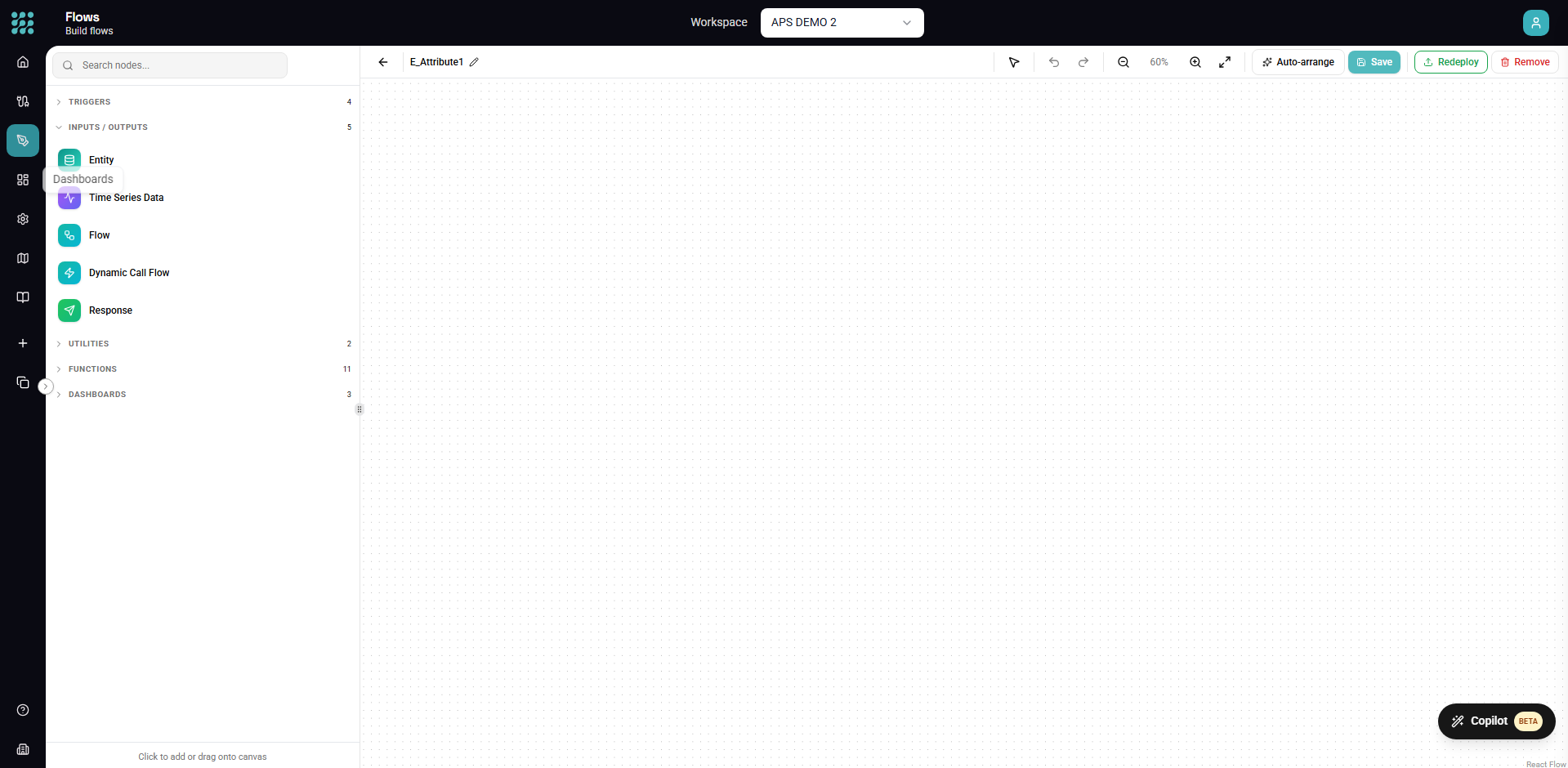
Data source nodes are the starting points of your workflows. They pull data from your connections, existing views, or other flows into your pipeline for transformation and processing.
Entity Node
The Entity node pulls data from a specific table, view, or endpoint in your connection.
Adding an Entity
- Click Entity in the toolbar, or drag from the Element Panel
- The Entity Selector opens showing your connections
- Browse or search for the entity you want
- Select it and click Add (or double-click to add immediately)
Tip: Hold Cmd/Ctrl while clicking to select multiple entities at once, then add them all together.
Entity Configuration
When you select an Entity node, the configuration panel shows:
Connection Info
- The connection name and type
- Entity name (table/view/endpoint)
Schema
- List of available columns with data types
- Column descriptions if available
Query Options (for database entities)
- Row Limit - Maximum rows to fetch (useful for previewing large tables)
- Custom WHERE - Add conditions to filter at the database level
Working with Entity Schemas
When you add an entity, FactoryThread loads its schema (columns and types). This schema:
- Propagates downstream - Connected nodes know what fields are available
- Updates automatically - If you refresh the connection, schema changes are detected
- Shows in preview - Column names and types appear in data previews
Database vs File Entities
Database Entities (SQL Server, PostgreSQL, etc.):
- Pull data with SQL queries
- Support query optimization (row limits, WHERE clauses)
- Can handle very large tables efficiently
File Entities (Excel, CSV):
- Pull entire sheet/file contents
- Schema inferred from headers and data
- Best for smaller datasets
API Entities (REST, OData):
- Call the API endpoint
- Handle pagination automatically
- Pass parameters defined in the connection
View Node
The View node includes an existing view as a data source, allowing you to reuse transformation logic.
Adding a View
- Click View in the toolbar, or drag from the Element Panel
- The View Selector opens showing your views
- Select the view you want to include
- Click Add
Why Use View Nodes?
Reusability Define a transformation once and use it in multiple workflows:
- Create a view that normalizes customer data
- Include that view in multiple flows
- When the logic changes, update it once
Modularity Break complex logic into manageable pieces:
- Each view handles one transformation concern
- Chain views together for complex pipelines
- Easier to test and debug
Organization Keep workflows clean and understandable:
- Abstract complex transformations behind a named view
- The flow shows "what" happens, views show "how"
View Parameters
Some views accept parameters for dynamic behavior:
- Select the View node
- In the configuration panel, you'll see any defined parameters
- Enter values or map them from upstream data
Call Flow Node
The Call Flow node executes another flow and uses its output as data in your current workflow.
Adding a Call Flow
- Click Action in the toolbar
- Select Call Flow
- Choose the flow to call
- Configure any input parameters
When to Use Call Flow
Sequential Processing When one flow's output becomes another's input:
- Flow A extracts and cleans data
- Flow B calls Flow A and adds business logic
- Flow B's output is the final result
Shared Processing When multiple flows need the same preprocessing:
- Create a "common processing" flow
- Each consumer flow calls it
- Changes to common logic apply everywhere
Error Isolation To contain failures:
- If the called flow fails, you can handle the error
- The calling flow can decide how to proceed
Call Flow Configuration
Flow Selection Choose which flow to call from your deployed flows.
Input Parameters Map values to the called flow's input parameters:
- Static values
- Fields from upstream nodes
- Expressions
Timeout Set how long to wait for the called flow to complete.
Dynamic Call Flow
For advanced use cases, the Dynamic Call Flow node lets you determine which flow to call at runtime:
- Add a Dynamic Call Flow node
- Map a field that contains the flow ID or name
- The specific flow is determined when the workflow runs
This is useful for:
- Configuration-driven processing
- A/B testing different flows
- Multi-customer scenarios
Structured Response:
Dynamic Call Flow returns { status, response } where:
status(boolean):trueon success,falseon failureresponse(array|string): Result data on success, error message on failure
Use a Condition node after Dynamic Call Flow to check ${status} before processing results.
Constant Node
The Constant node provides static data that you define directly in the workflow.
Adding a Constant
- Drag Constant from the Element Panel
- Define the schema (columns) you want
- Add rows of data
Use Cases
Lookup Tables Small reference tables that don't need a database:
- Status mappings
- Code translations
- Configuration values
Test Data When building and testing workflows:
- Create sample data to test transformations
- No connection required
Default Values Provide fallback data when other sources are empty.
Configuration
Schema Definition Define columns with:
- Column name
- Data type (text, number, date, boolean)
Row Data Add rows manually in a spreadsheet-like interface.
Best Practices
Choose the Right Data Source
| Need | Use |
|---|---|
| Data from a database/file | Entity node |
| Reusable transformation | View node |
| Output from another flow | Call Flow node |
| Static reference data | Constant node |
Optimize Data Loading
For large tables:
- Use row limits during development
- Add WHERE conditions to filter at the source
- Consider creating database views for complex queries
For APIs:
- Understand pagination behavior
- Set appropriate timeouts
- Handle rate limits gracefully
Name Data Sources Clearly
Good names describe what data is being pulled:
| Bad | Good |
|---|---|
| Entity1 | Customer Orders |
| View1 | Normalized Addresses |
| CallFlow1 | Load Product Catalog |
Handle Schema Changes
When underlying schemas change:
- Connections can be refreshed to pick up changes
- Downstream nodes may need reconfiguration
- Preview your workflow to verify data still flows correctly
Troubleshooting
"Connection failed"
If an entity node shows a connection error:
- Check the connection is healthy in Connections
- Verify credentials haven't expired
- Test network connectivity
"Schema not found"
If the schema can't be loaded:
- Refresh the connection to rediscover entities
- Verify the table/endpoint still exists
- Check user permissions on the data source
"Circular dependency"
If using Call Flow or View nodes:
- You can't create cycles (A calls B, B calls A)
- Verify your flow/view references don't loop
Next Steps
- Transform Nodes - Process your data
- Action Nodes - Output results
- Connections Overview - Manage data sources