Action Nodes
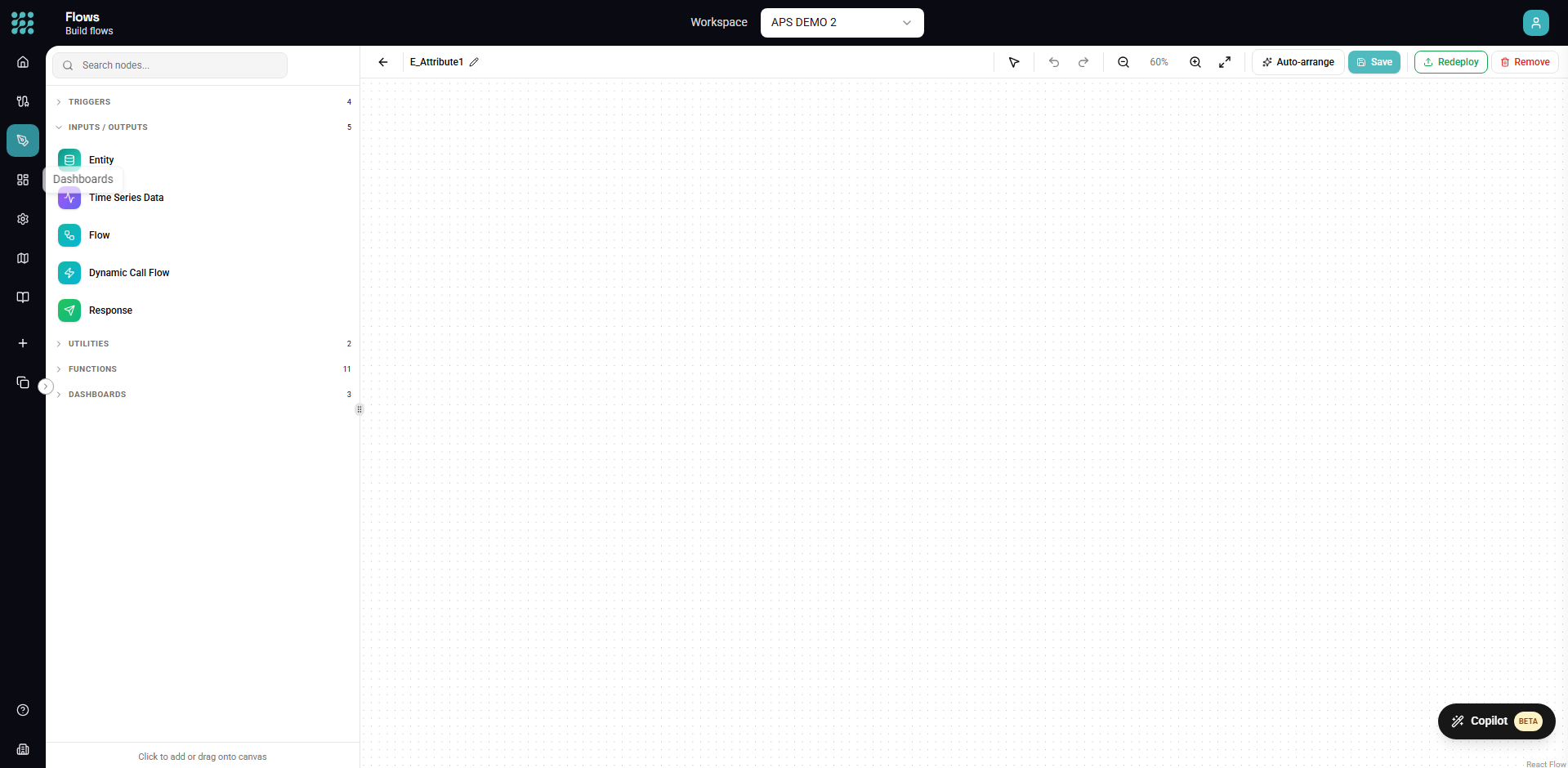
Action nodes define what happens with your data after transformation. They can write data to destinations, call external APIs, send notifications, or return responses for API endpoints.
Response Node
The Response node defines what data is returned when a flow is called via HTTP or from another flow.
When to Use
- HTTP Triggers - Define the API response body
- From Flow Triggers - Define output data for calling flows
- Manual execution - Control what appears in preview results
Configuration
Response Data Select which fields to include in the response:
- All fields from the incoming data
- Specific fields only
- Transformed field names
Response Format For HTTP triggers:
- JSON (default)
- CSV
- XML
Example
For an API that returns customer data:
- Function nodes filter and shape data
- Response node selects: CustomerID, Name, Email, Status
- HTTP trigger returns JSON array of these fields
Write Data Action
The Write Data action saves data to a database, file, or other destination.
Configuration
Destination Select where to write:
- Database table (via connection)
- File export
- API endpoint
Write Mode
| Mode | Description |
|---|---|
| Insert | Add new rows only |
| Update | Modify existing rows |
| Upsert | Insert or update based on key |
| Replace | Clear table and insert all |
| Append | Add to existing data |
Field Mapping Map source fields to destination columns:
- Auto-map by matching names
- Manual mapping for different names
- Skip fields you don't want to write
Key Fields (for Update/Upsert) Specify which fields identify unique rows.
Example: Database Insert
- Source data flows into Write Data action
- Select destination table from your database connection
- Map fields: SourceField → TableColumn
- Choose Insert mode
- Data is written when the flow executes
Call API Action
The Call API action makes HTTP requests to external services.
Configuration
Endpoint The URL to call. Can include variables from your data:
https://api.example.com/customers/${CustomerID}
Method HTTP method: GET, POST, PUT, PATCH, DELETE
Headers Custom headers for the request:
- Content-Type
- Authorization
- Custom headers
Body (for POST/PUT/PATCH) Request body options:
- JSON from upstream data
- Custom JSON template
- Form data
Authentication
- None
- Basic Auth
- Bearer Token
- API Key
- OAuth (from connection)
Response Handling
The API response can be:
- Passed to downstream nodes
- Used to control flow logic
- Logged for debugging
Example: Webhook Notification
- Configure endpoint:
https://hooks.slack.com/services/xxx - Method: POST
- Body: JSON with message from your data
- Headers: Content-Type: application/json
Send Notification Action
The Send Notification action sends alerts via email or webhook.
Email Notifications
Configuration:
- To - Recipient email addresses
- Subject - Email subject line (can include variables)
- Body - Email content (text or HTML)
- Attachments - Optionally attach data as CSV/Excel
Variables in Templates:
Subject: Order ${OrderID} has been processed
Body: Dear ${CustomerName}, your order is complete.
Webhook Notifications
Configuration:
- URL - Webhook endpoint
- Payload - JSON body to send
- Headers - Custom headers
Error Handling
Actions can fail for various reasons. Configure error handling:
On Error Options
| Option | Behavior |
|---|---|
| Stop Flow | Halt execution, mark as failed |
| Continue | Log error, continue processing |
| Retry | Attempt again (with backoff) |
| Branch | Route to error handling path |
Retry Configuration
For transient failures:
- Max Retries - Number of attempts
- Retry Delay - Wait time between attempts
- Backoff - Exponential backoff multiplier
Best Practices
Idempotency
Design actions to be safely repeatable:
- Use upsert instead of insert where possible
- Include unique identifiers in API calls
- Handle duplicate requests gracefully
Error Handling
Always plan for failures:
- Network timeouts
- API rate limits
- Database constraints
- Invalid data
Testing
Before deploying:
- Preview with test data
- Check error handling paths
- Verify destination data
Performance
For large data volumes:
- Batch writes when possible
- Use async actions for non-blocking operations
- Monitor execution times
Next Steps
- Triggers - Configure what starts your flows
- Building Flows - End-to-end flow creation