Trigger Types
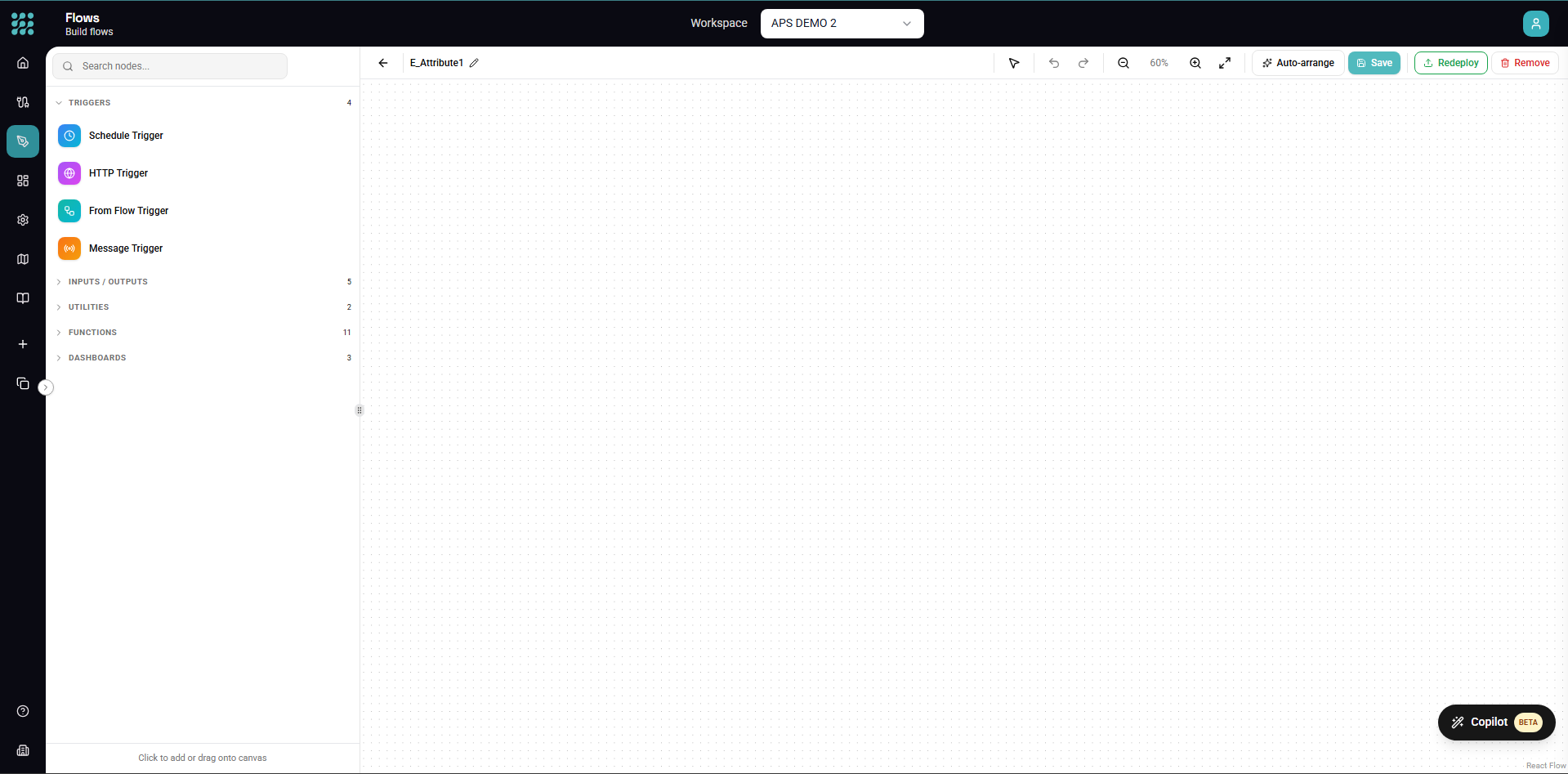
Triggers define what starts your Flow automatically. FactoryThread supports several trigger types for different scenarios — and a Flow doesn't strictly need one.
Running on demand (no trigger)
A Flow does not require a trigger. If you don't add one, the Flow runs on demand — when you click Run in the Designer, or call it via the API. This is the simplest way to run a Flow, and it's ideal for testing, ad-hoc processing, and one-off migrations. There is no separate "Manual" trigger to add — on-demand is simply the absence of a trigger.
A Flow only needs at least one starting point to be valid: a trigger, a source node (Entity, API, or Time Series), or a Dashboard. A Flow that has only Function nodes and nothing to start from is incomplete.
Schedule Trigger
Runs your flow automatically based on a time schedule.
When to Use
- Daily/weekly data synchronization
- Regular report generation
- Periodic cleanup tasks
- Batch processing jobs
Configuration
Simple Schedules
Quick presets for common patterns:
- Every 15 minutes
- Hourly
- Daily at specific time
- Weekly on specific day
- Monthly on specific date
Custom Cron Expression
For advanced scheduling, use cron syntax:
┌───────────── minute (0-59)
│ ┌───────────── hour (0-23)
│ │ ┌───────────── day of month (1-31)
│ │ │ ┌───────────── month (1-12)
│ │ │ │ ┌───────────── day of week (0-6, Sunday=0)
│ │ │ │ │
* * * * *
Examples:
| Schedule | Cron Expression |
|---|---|
| Every hour | 0 * * * * |
| Daily at 6 AM | 0 6 * * * |
| Monday at 9 AM | 0 9 * * 1 |
| First day of month | 0 0 1 * * |
| Every 30 minutes | */30 * * * * |
| Weekdays at 8 AM | 0 8 * * 1-5 |
Timezone
All schedules run in your workspace's configured timezone. Make sure to account for this when setting schedules.
Viewing Scheduled Runs
See upcoming scheduled executions:
- In the Dashboard "Upcoming Schedules" widget
- In the flow's trigger configuration
- In the Insights page
Handling Missed Runs
If a scheduled run is missed (server downtime, etc.):
- The system does not retroactively run missed schedules
- The next scheduled run will occur as normal
- Check Insights for any gaps in execution history
HTTP Trigger
Exposes your flow as a REST API endpoint that can be called from external systems.
When to Use
- Building APIs for external consumption
- Webhook endpoints for third-party integrations
- Real-time data requests
- Synchronous data processing
Configuration
Endpoint Settings
- Path - The URL path for your endpoint (auto-generated or custom)
- Method - HTTP method(s) to accept (GET, POST, etc.)
- Authentication - Require API key for access
Request Schema
Define the expected input structure:
Query Parameters (for GET requests)
?customerId=123&includeHistory=true
Request Body (for POST/PUT/PATCH)
{
  "customerId": "string",
  "filters": {
    "status": "string",
    "dateFrom": "date"
  }
}
Path Parameters
/api/customers/{customerId}/orders
Using Request Data
Request parameters are available in your workflow:
- Add parameters to your HTTP trigger configuration
- Reference them in downstream nodes using
${parameterName} - Use them in filters, transforms, or as input to other nodes
Response Configuration
Control what's returned:
- Add a Response node to your flow
- Configure the response data structure
- The trigger returns this data to the caller
Response Codes:
- 200 - Success with data
- 201 - Created
- 400 - Bad request (validation failed)
- 401 - Unauthorized (invalid/missing API key)
- 500 - Internal error
Example: Customer Lookup API
- HTTP Trigger: GET
/api/customers/{id} - Entity node: Load from Customers table
- Filter: CustomerID equals
${id} - Response: Return customer fields
Testing HTTP Triggers
Before sharing with external systems:
- Deploy the flow
- Copy the endpoint URL
- Test with curl, Postman, or your browser
- Include your API key in the header:
Authorization: Bearer your-api-key
From Flow Trigger
Creates a reusable flow that can be called by other flows.
When to Use
- Shared processing logic
- Modular workflow design
- Building libraries of reusable operations
- Decomposing complex flows
Configuration
Input Parameters
Define what data the flow expects:
- Parameter name
- Data type (text, number, date, etc.)
- Required or optional
- Default value
Example Parameters:
customerId: string (required)
startDate: date (optional, default: 30 days ago)
includeInactive: boolean (optional, default: false)
Calling From Other Flows
To use a flow with From Flow trigger:
- In your calling flow, add a Call Flow node
- Select the target flow
- Map values to the input parameters
- The called flow's response becomes available downstream
Return Data
Use a Response node to define what data is returned to the calling flow.
Best Practices
Keep Focused Each "From Flow" flow should do one thing well:
- "Enrich Customer Data"
- "Calculate Shipping Cost"
- "Validate Address"
Document Parameters Use clear parameter names and add descriptions.
Handle Errors Return meaningful error information when things go wrong.
Message Trigger
Runs the Flow each time a message arrives on a topic — for example from an MQTT broker. The message payload becomes the Flow's input. Use it to react to real-time events from the shop floor.
Configure the streaming connection, the topic(s) to subscribe to, the QoS level, and the message format. See Message Trigger for full details and Streaming Connections for the broker setup.
Multiple Triggers
A flow can have multiple triggers of different types.
Use Cases
- Schedule AND manual (for testing scheduled flows)
- Multiple schedules (different frequencies for different needs)
- HTTP AND From Flow (API and internal use)
Configuration
- Add your primary trigger
- Add additional triggers from the Action menu
- Each trigger operates independently
Execution Context
The flow receives context about how it was triggered:
- Trigger type
- Input parameters (if applicable)
- Execution timestamp
Trigger States
Enabled/Disabled
Triggers can be enabled or disabled without undeploying the entire flow:
- Disable a schedule temporarily
- Keep HTTP endpoint active while testing new schedule
Deployed vs Draft
- Draft - Triggers are not active
- Deployed - Triggers are active and will fire
Best Practices
Choose the Right Trigger
| Scenario | Trigger Type |
|---|---|
| Regular data sync | Schedule |
| External API | HTTP |
| Reusable logic | From Flow |
| Real-time messages | Message |
| Ad-hoc processing | No trigger (run on demand) |
Schedule Considerations
- Avoid scheduling at common times (midnight, top of hour)
- Stagger multiple schedules to avoid resource contention
- Consider dependencies between scheduled flows
HTTP Security
- Always require API key authentication
- Use HTTPS (automatic in production)
- Validate input data thoroughly
- Log requests for auditing
Testing Triggers
- Start with Manual trigger during development
- Test Schedule triggers by checking execution history
- Test HTTP triggers with API tools before integration
- Test From Flow triggers from a test parent flow
Troubleshooting
Schedule Not Running
- Check the flow is deployed
- Verify the cron expression is correct
- Check timezone settings
- Look for errors in recent execution history
HTTP Returns 401
- Verify API key is valid
- Check Authorization header format
- Ensure the key has permission for this flow
From Flow Not Found
- Check the target flow is deployed
- Verify the flow ID is correct
- Ensure you have permission to call the flow
Next Steps
- Building Flows - Complete flow creation guide
- Actions - Configure flow outputs
- Dashboard Overview - Monitor your triggers