Building Actions
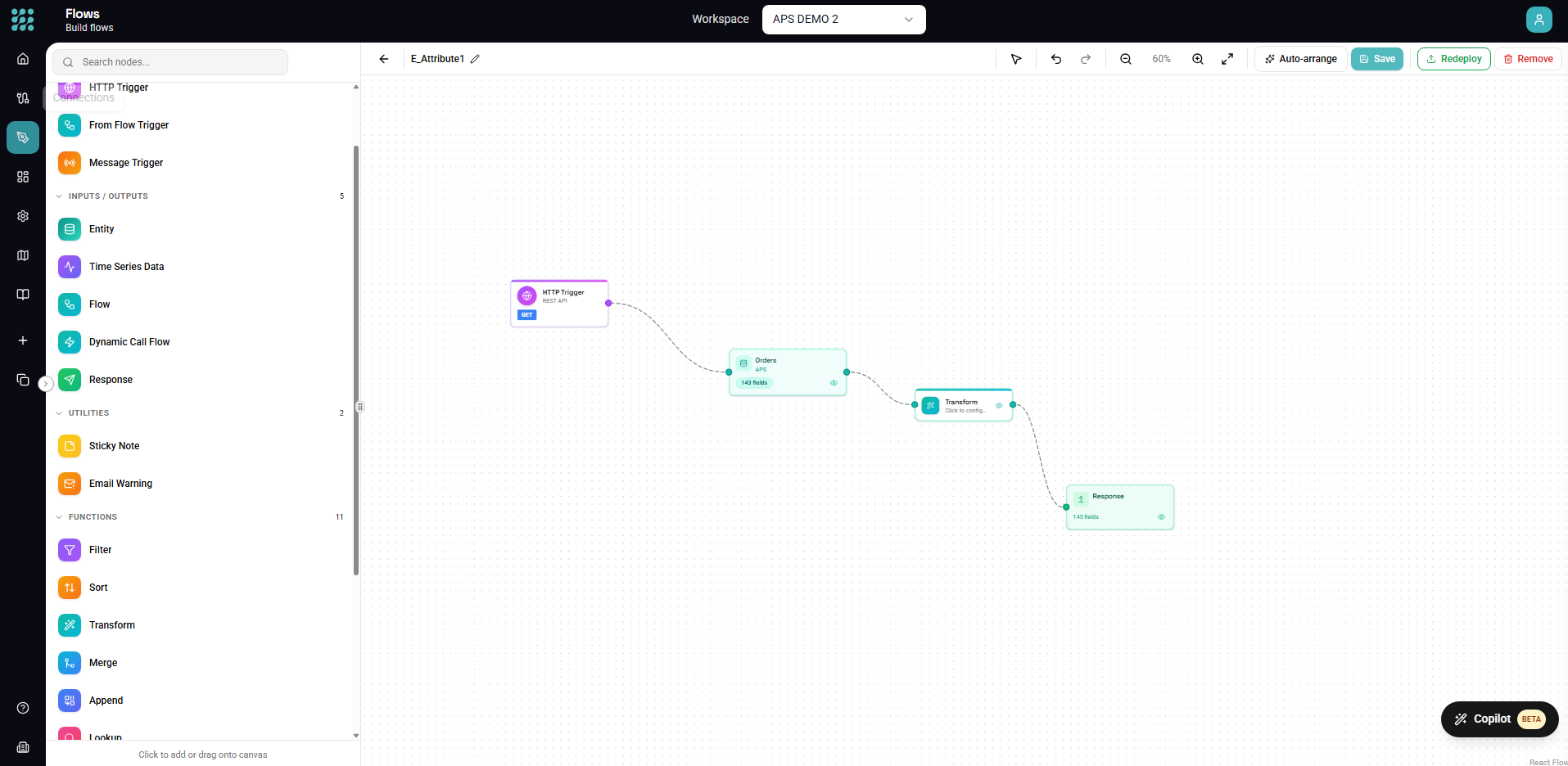
Actions are automated data pipelines that run based on triggers. This guide walks you through creating an action from start to finish, including configuration, testing, and deployment.
Action Anatomy
Every action has these components:
[Trigger] → [Data Sources] → [Transformations] → [Actions]
- Trigger - What starts the action (schedule, HTTP, manual)
- Data Sources - Where data comes from (entities, views, other actions)
- Transformations - How data is processed (filter, transform, merge)
- Actions - What happens with results (write, API call, response)
Creating a New Action
Step 1: Open the Designer
- Click Actions in the sidebar
- Click + New in the toolbar
- Select Action
A new canvas opens with an empty action.
Step 2: Add a Trigger
Every action needs at least one trigger. Click Action in the toolbar or drag from the Element Panel:
Schedule Trigger
- Runs on a time schedule (cron)
- Good for: Regular syncs, batch processing, reports
HTTP Trigger
- Creates a REST API endpoint
- Good for: Real-time requests, webhooks, integrations
Manual Trigger
- Runs on-demand
- Good for: Testing, ad-hoc processing, migrations
From Action Trigger
- Called by other actions
- Good for: Reusable logic, modular design
Step 3: Add Data Sources
Add entities to pull data into your action:
- Click Entity in the toolbar (or drag from panel)
- Select your connection
- Choose the table/endpoint
- Click Add
Tip: Select multiple entities at once by holding Cmd/Ctrl while clicking.
Step 4: Connect Nodes
Draw connections to establish data flow:
- Click the output handle (right side) of a node
- Drag to the input handle (left side) of the next node
- Release to create the connection
Data flows left to right through your connections.
Step 5: Add Transformations
Process your data with transform nodes:
Filter - Keep only rows matching conditions
Status = "Active" AND Amount > 100
Transform - Add calculated fields
FullName = FirstName & " " & LastName
Merge - Join data from multiple sources
Orders JOIN Customers ON Orders.CustomerID = Customers.ID
Group By - Aggregate data
GROUP BY Region: SUM(Sales), COUNT(Orders)
Step 6: Add Actions
Define what happens with the processed data:
Write Data - Save to database or file
Call API - Send data to external service
Response - Return data (for HTTP triggers)
Notification - Send alerts
Step 7: Configure Each Node
Click each node to open its configuration panel:
- Select the node
- Panel opens on the right
- Configure required settings
- Settings auto-save
Step 8: Test with Preview
Before deploying, test your action:
- Select a node in your action
- Click Preview (or Cmd/Ctrl + Enter)
- View the data at that point
- Check for expected results
Preview each node to verify data flows correctly through your pipeline.
Step 9: Save
Your action auto-saves, but you can manually save:
- Click Save (or Cmd/Ctrl + S)
- Enter a name if prompted
- Choose a category (optional)
Use descriptive names: "Daily Customer Sync" not "Flow1"
Step 10: Deploy
When ready for production:
- Click Deploy in the toolbar
- Confirm deployment
- Action is now active
For scheduled actions, executions begin at the next scheduled time. For HTTP triggers, the endpoint becomes available.
Example: Daily Sales Sync
Let's build an action that syncs daily sales data:
1. Trigger
- Add Schedule Trigger
- Set: Daily at 6:00 AM
2. Data Sources
- Add "Sales" entity from your database
- Add "Products" entity
3. Filter
- Add Filter node after Sales
- Condition:
OrderDate = TODAY() - 1(yesterday's orders)
4. Merge
- Connect Sales and Products
- Join on: Sales.ProductID = Products.ID
- Type: Left Join
5. Transform
- Add calculated field:
TotalAmount = Price * Quantity - Add:
Region = COALESCE(CustomerRegion, "Unknown")
6. Group By
- Group by: Region, ProductCategory
- Aggregate: SUM(TotalAmount), COUNT(OrderID)
7. Write Data
- Destination: "DailySalesSummary" table
- Mode: Insert
- Map fields appropriately
8. Test
- Preview at each node
- Verify data looks correct
- Check aggregations
9. Deploy
- Click Deploy
- Action runs daily at 6 AM
Action Patterns
ETL Pattern
Extract, Transform, Load:
[Entity] → [Filter] → [Transform] → [Write Data]
Fan-Out Pattern
One source, multiple destinations:
             → [Filter A] → [Write A]
[Entity]
             → [Filter B] → [Write B]
Fan-In Pattern
Multiple sources, one destination:
[Entity A] →
             [Merge] → [Transform] → [Write]
[Entity B] →
Lookup Pattern
Enrich data from reference tables:
[Main Data] → [Lookup: Reference Table] → [Transform]
Error Handling Pattern
Separate success and failure paths:
               → [Success Path] → [Write Success]
[Process]
               → [Error Path] → [Log Errors]
Testing Strategies
Unit Testing
Test each node individually:
- Preview with known input
- Verify output matches expectations
End-to-End Testing
Test the complete action:
- Use Manual trigger first
- Run with test data
- Verify final output
Edge Case Testing
Test unusual scenarios:
- Empty data sets
- Null values
- Large volumes
- Invalid data
Deployment Checklist
Before deploying to production:
- All nodes configured (no red indicators)
- Connections are healthy
- Preview shows expected results
- Error handling in place
- Appropriate trigger schedule
- Descriptive name assigned
- Tested with realistic data
Monitoring After Deployment
Once deployed:
- Check Dashboard - Verify executions appear
- Review Insights - Monitor success/failure
- Set Alerts - Get notified of failures
- Track Performance - Watch execution times
Updating Deployed Actions
To modify a deployed action:
- Open the action in Designer
- Make your changes
- Test with Preview
- Save changes
- Changes apply to next execution
No need to redeploy for most changes. Only undeploy if you need to stop executions.
Best Practices
Design
- Keep actions focused (single responsibility)
- Use views for reusable transformations
- Document with good names and groups
Testing
- Always preview before deploying
- Test with realistic data volumes
- Verify edge cases
Monitoring
- Check executions regularly
- Set up failure notifications
- Review performance trends
Maintenance
- Update when source schemas change
- Review and optimize slow actions
- Archive unused actions
Troubleshooting
"Invalid configuration"
- Check all required fields are filled
- Verify connections are healthy
- Look for red indicators on nodes
"No data returned"
- Check source has data
- Verify filter conditions
- Confirm date ranges
"Timeout during execution"
- Optimize slow queries
- Add row limits
- Process in batches
Next Steps
- Triggers - Configure trigger types
- Transforms - Master transformations
- Actions - Output options
- Dashboard - Monitor executions