From Action Trigger
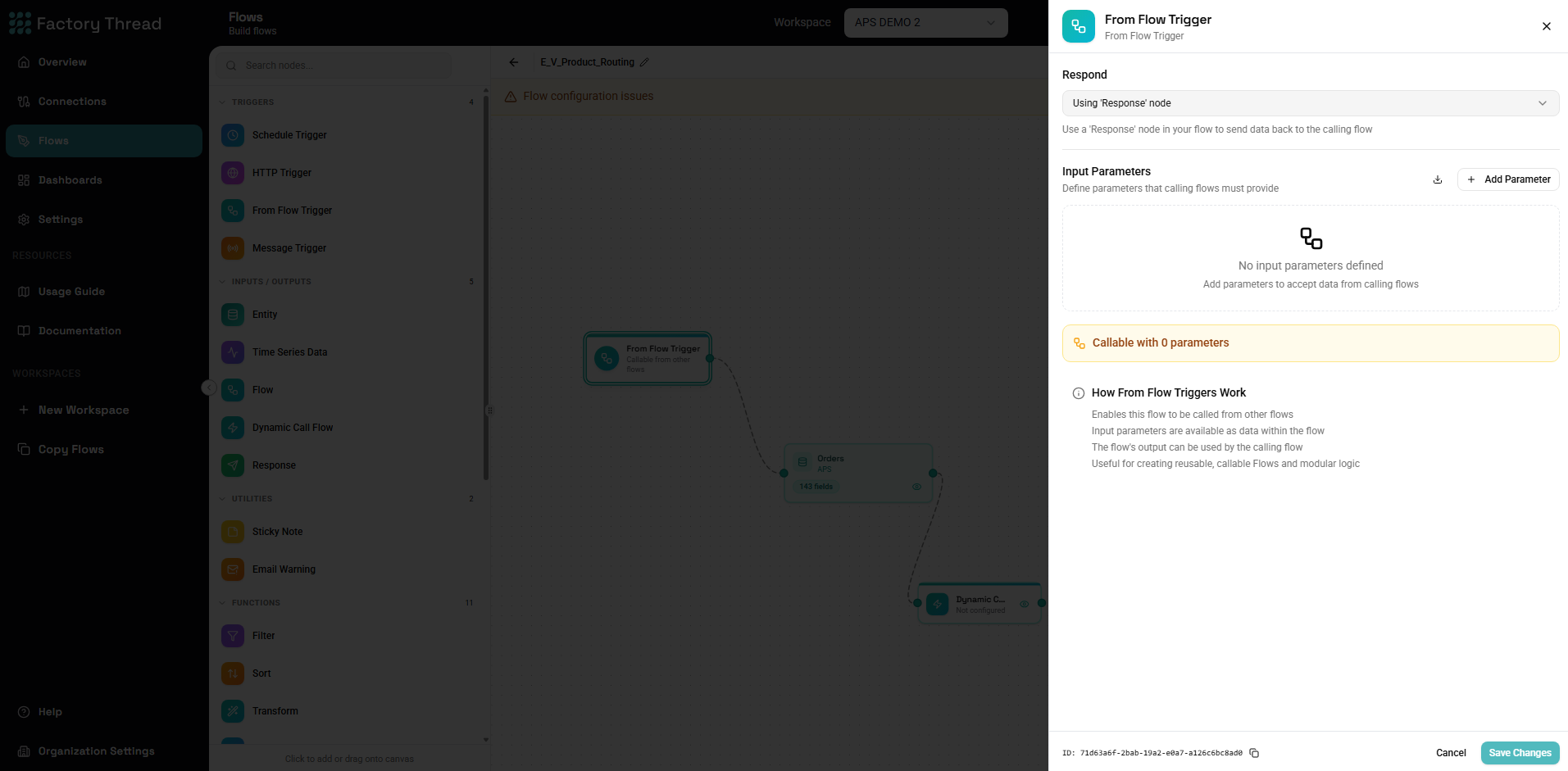
The From Action Trigger enables your action to be called from other actions, creating reusable, modular workflow components. Use it to build libraries of common operations that can be shared across multiple workflows.
When to Use From Action Triggers
Ideal for:
- Reusable data transformations (e.g., address normalization)
- Shared business logic (e.g., pricing calculations)
- Common integrations (e.g., CRM lookup)
- Modular workflow design
- Testing isolated components
Not ideal for:
- Standalone automated workflows (use Schedule Trigger)
- External API access (use HTTP Trigger)
- Simple one-off operations
Understanding Sub-Action Architecture
Parent and Child Actions
┌─────────────────────────────────────────┐
│ Parent Action                           │
│                                         │
│  [Trigger] → [Data] → [Call Action]     │
│                            │            │
└────────────────────────────│────────────┘
                             ↓
┌─────────────────────────────────────────┐
│ Child Action (has From Action Trigger)  │
│                                         │
│  [From Action] → [Process] → [Response] │
│                                         │
└─────────────────────────────────────────┘
- Parent Action: The action that calls another action
- Child Action: The action with the From Action Trigger
- Input: Data passed from parent to child
- Output: Data returned from child to parent
Execution Action
- Parent action reaches Call Action node
- Child action executes with provided input
- Child action completes and returns output
- Parent action continues with child's output
Adding a From Action Trigger
- Open your action in the Designer
- Click Action in the toolbar
- Select From Action Trigger
- The trigger node appears on the canvas
- Click to configure input parameters
Configuration Panel
Basic Settings
Name (optional) A descriptive name for this trigger:
- "Customer Data Input"
- "Order Processing Entry"
- "Calculation Parameters"
Input Parameters
Define what data this action expects when called:
Adding Parameters:
- Click Add Parameter
- Enter parameter name (e.g.,
customerId) - Select data type
- Mark as required or optional
- Add description (helps callers understand usage)
Parameter Types:
| Type | Description | Example |
|---|---|---|
| Text | String values | Names, IDs, codes |
| Number | Numeric values | Quantities, amounts |
| Boolean | True/false | Flags, switches |
| Date | Date values | Start dates, deadlines |
| DateTime | Date and time | Timestamps |
| Object | Complex JSON | Nested data structures |
| Array | Lists | Multiple items |
Example Parameter Configuration:
Parameters:
  - name: customerId
    type: text
    required: true
    description: Unique customer identifier

  - name: includeHistory
    type: boolean
    required: false
    default: false
    description: Include transaction history

  - name: startDate
    type: date
    required: false
    description: Filter data from this date
Input Schema
For complex inputs, define a complete schema:
Simple Parameters: Individual named values passed separately.
Object Input: A structured object with multiple fields:
{
  "customer": {
    "id": "C123",
    "name": "Acme Corp"
  },
  "options": {
    "includeDetails": true,
    "format": "detailed"
  }
}
Array Input: A list of items to process:
{
  "orderIds": ["O001", "O002", "O003"],
  "batchSize": 100
}
Using Input Parameters in Your Action
Accessing Parameters
Parameters are available throughout your action:
In Filter conditions:
CustomerID = actionInput.customerId
In Transform expressions:
"Customer: " & customerId
In Entity queries:
WHERE customer_id = ${customerId}
Parameter Validation
Input validation happens automatically:
- Required parameters must be provided
- Types are checked and converted
- Missing required parameters cause an error
Default Values
For optional parameters:
- Define defaults in the configuration
- Action uses default when parameter not provided
- Helps make actions more flexible
Building the Response
Response Node
Every callable action should have a Response node:
- Add Response node at the end of your action
- Connect it to your final transformation
- Configure which data to return
Response Schema
Define what the calling action receives:
Single Value:
{
  "result": "processed"
}
Data Record:
{
  "customer": {
    "id": "C123",
    "name": "Acme Corp",
    "status": "active"
  }
}
Data Collection:
{
  "items": [...],
  "count": 150
}
No Response
If your action doesn't return data:
- Still add a Response node
- Configure empty response
- Calling action knows execution completed
Calling From Other Actions
Call Action Node
To use an action with From Action Trigger:
- In your parent action, add Call Action node
- Select the target action
- Map input parameters
- Handle the returned data
Parameter Mapping
Static Values:
customerId = "C12345"
From Upstream Data:
customerId = ${CustomerRecord.ID}
Expressions:
fullName = FirstName & " " & LastName
Handling Output
The Call Action node's output contains:
- Data returned by the Response node
- Execution metadata
- Error information if failed
Connect subsequent nodes to process returned data.
Dynamic Call Action
For advanced scenarios, determine which action to call at runtime:
Configuration
- Add Dynamic Call Action node
- Specify a field containing the action ID or name
- Map common parameters
Use Cases
- Configuration-driven: Action ID stored in config table
- Multi-customer: Different actions for different clients
- A/B testing: Route to different action versions
- Fallback logic: Primary action with backup
Example
┌────────────────────────────────────────────────┐
│  Data contains: processorActionId = "F123"     │
│                                                │
│  Dynamic Call Action uses ${processorActionId} │
│  to determine which action to execute          │
└────────────────────────────────────────────────┘
Structured Response
Dynamic Call Action returns a structured response with status and results:
Success Response:
{
  "status": true,
  "response": [
    { "field1": "value1", "field2": "value2" },
    { "field1": "value3", "field2": "value4" }
  ]
}
Failure Response:
{
  "status": false,
  "response": "Child action 'ProcessOrder' returned no data"
}
Output Fields:
| Field | Type | Description |
|---|---|---|
status | Boolean | true if action executed successfully, false otherwise |
response | Array or String | Array of results on success, error message on failure |
Using the Response:
[Dynamic Call Action] → [Condition: ${status} = true]
                              ↓ Yes                    ↓ No
                     [Process ${response}]    [Handle Error: ${response}]
Error Handling
Child Action Errors
When a called action fails:
- Error propagates to parent action
- Parent action can catch and handle
- Execution details available in Insights
Error Handling Patterns
Fail Fast: Let errors propagate immediately:
[Call Action] → [Continue Processing]
         ↓ (error)
    Action Fails
Catch and Handle: Use Condition to check for errors:
[Call Action] → [Check Success] → [Continue if OK]
                     ↓
              [Handle Error]
Retry Logic: Call again on failure (use with caution):
[Call Action] → [Check] → [Retry Call Action] → ...
Best Practices
Design for Reusability
Single Responsibility: Each callable action should do one thing well:
- "Normalize Address" - just normalizes addresses
- "Calculate Shipping" - just calculates shipping
- "Validate Customer" - just validates customer data
Clear Interfaces:
- Name parameters descriptively
- Document expected input/output
- Use consistent naming conventions
Minimal Dependencies:
- Avoid assumptions about calling context
- Accept all needed data as parameters
- Don't rely on global state
Parameter Design
Be Explicit:
# Good
- customerId: string (required)
- includeHistory: boolean (optional, default: false)

# Avoid
- data: object (unclear structure)
Use Appropriate Types:
# Good
- amount: number
- orderDate: date

# Avoid
- amount: string (will need conversion)
- orderDate: string (format ambiguous)
Documentation
In the Action:
- Use meaningful trigger name
- Add descriptions to parameters
- Name internal nodes clearly
External:
- Document the action's purpose
- Explain expected input/output
- Provide usage examples
Testing
Test Independently:
- Open the callable action
- Use Preview with test parameters
- Verify output is correct
Test Integration:
- Create test parent action
- Call the reusable action
- Verify end-to-end behavior
Troubleshooting
"Action not found"
- Verify the target action is deployed
- Check action ID is correct
- Ensure you have permission to call it
"Parameter missing"
- Check required parameters are mapped
- Verify parameter names match exactly
- Check for null values in source data
"Type mismatch"
- Verify input types match expected
- Add Convert nodes if needed
- Check for null/empty values
"Circular dependency"
- Action A cannot call Action B if Action B calls Action A
- Review your action architecture
- Break cycles by redesigning
"Timeout"
- Called action takes too long
- Optimize the called action
- Consider async patterns for long operations
Examples
Address Normalization Action
From Action Trigger Parameters:
- street: text (required)
- city: text (required)
- state: text (required)
- zip: text (required)
Action Logic:
- Transform: Standardize abbreviations
- Transform: Proper case formatting
- Lookup: Validate against postal database
- Response: Return normalized address
Caller Usage:
Input: {street: "123 main st", city: "new york", ...}
Output: {street: "123 Main Street", city: "New York", ...}
Pricing Calculator Action
From Action Trigger Parameters:
- productId: text (required)
- quantity: number (required)
- customerId: text (optional)
- promoCode: text (optional)
Action Logic:
- Lookup: Get base price from products
- Lookup: Get customer discount (if customerId)
- Lookup: Get promo discount (if promoCode)
- Transform: Calculate final price
- Response: Return pricing breakdown
Data Enrichment Action
From Action Trigger Parameters:
- records: array (required)
- enrichmentType: text (required)
Action Logic:
- For each record in array
- Lookup: Fetch enrichment data
- Merge: Combine original + enrichment
- Response: Return enriched records
Next Steps
- Call Action Node - Using callable actions
- Schedule Trigger - Time-based automation
- HTTP Trigger - API endpoints
- Building Actions - Complete guide