Schedule Trigger
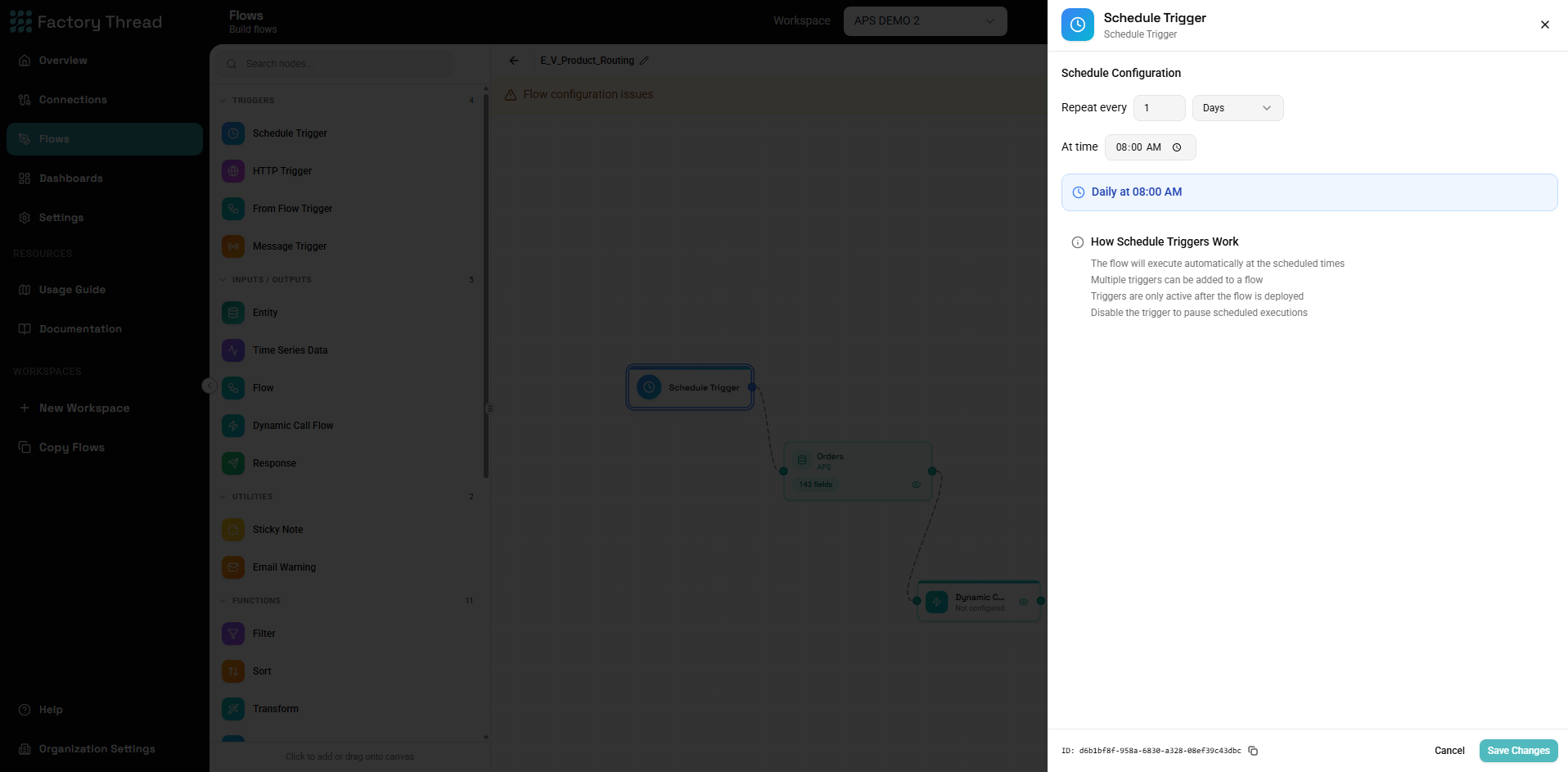
The Schedule Trigger executes your flow automatically based on a time schedule. Use it for recurring data synchronization, scheduled reports, batch processing, and any workflow that needs to run at specific times.
When to Use Schedule Triggers
Ideal for:
- Daily data synchronization between systems
- Hourly metrics aggregation
- Weekly report generation
- Monthly cleanup or archival tasks
- Any recurring, time-based automation
Not ideal for:
- Real-time data processing (use HTTP Trigger)
- Event-driven workflows (use HTTP Trigger with webhooks)
- On-demand operations (use Manual Trigger or HTTP Trigger)
Adding a Schedule Trigger
- Open your flow in the Designer
- Click Action in the toolbar
- Select Schedule Trigger
- The trigger node appears on the canvas
- Click the node to configure the schedule
Configuration Panel
When you select a Schedule Trigger, the configuration panel shows these options:
Basic Settings
Name (optional) A descriptive name for this trigger. Helps identify the purpose when you have multiple triggers.
Example names:
- "Daily 6 AM Sync"
- "Hourly Metrics Update"
- "Weekly Monday Report"
Enabled Toggle to enable or disable this trigger. When disabled:
- The schedule won't fire
- The flow can still run via other triggers or manually
- Useful for temporarily pausing without deleting
Schedule Configuration
Quick Schedules
For common patterns, use the preset options:
| Preset | Description | Cron Equivalent |
|---|---|---|
| Every 15 minutes | Runs at :00, :15, :30, :45 | */15 * * * * |
| Every 30 minutes | Runs at :00, :30 | */30 * * * * |
| Every hour | Runs at the top of each hour | 0 * * * * |
| Every 6 hours | Runs 4 times daily | 0 */6 * * * |
| Daily | Runs once per day (configurable time) | 0 0 * * * |
| Weekly | Runs once per week (configurable day/time) | 0 0 * * 0 |
| Monthly | Runs once per month (configurable date/time) | 0 0 1 * * |
Custom Cron Expression
For precise control, enter a custom cron expression:
Cron Format:
┌───────────── minute (0-59)
│ ┌───────────── hour (0-23)
│ │ ┌───────────── day of month (1-31)
│ │ │ ┌───────────── month (1-12)
│ │ │ │ ┌───────────── day of week (0-6, Sunday=0)
│ │ │ │ │
* * * * *
Cron Special Characters:
| Character | Meaning | Example |
|---|---|---|
* | Any value | * * * * * = every minute |
, | List of values | 0,30 * * * * = at :00 and :30 |
- | Range of values | 0-5 * * * * = minutes 0-5 |
/ | Step values | */15 * * * * = every 15 minutes |
Common Cron Examples:
| Schedule | Cron Expression | Description |
|---|---|---|
| Every minute | * * * * * | Runs every minute (use carefully!) |
| Every 5 minutes | */5 * * * * | At :00, :05, :10, etc. |
| Every hour at :30 | 30 * * * * | At 30 minutes past each hour |
| Daily at 6:00 AM | 0 6 * * * | Every day at 6:00 AM |
| Daily at 11:30 PM | 30 23 * * * | Every day at 11:30 PM |
| Weekdays at 8:00 AM | 0 8 * * 1-5 | Mon-Fri at 8:00 AM |
| Weekends at 9:00 AM | 0 9 * * 0,6 | Sat & Sun at 9:00 AM |
| Monday at 9:00 AM | 0 9 * * 1 | Every Monday at 9:00 AM |
| First day of month | 0 0 1 * * | 1st of each month at midnight |
| Last weekday of month | Complex | Requires special handling |
| Every quarter | 0 0 1 1,4,7,10 * | Jan, Apr, Jul, Oct 1st |
Timezone
All schedules execute in your workspace's configured timezone. This is important for:
- Daylight Saving Time - Schedules adjust automatically
- Global teams - Times are consistent with your business timezone
- Coordination - Multiple flows run at expected local times
Important: If you change your workspace timezone, all schedule triggers adjust to the new timezone. A "9 AM" schedule will still run at "9 AM" in the new timezone.
Advanced Options
Start Date (optional) The earliest date/time this schedule should start running. Useful for:
- Delayed launch of new workflows
- Coordinating with project timelines
- Testing with a future start
End Date (optional) The date/time after which this schedule should stop. Useful for:
- Time-limited campaigns
- Temporary workflows
- Project-based automation
Max Concurrent Executions How many instances of this flow can run simultaneously:
- 1 (default) - Wait for previous execution to complete
- Unlimited - Start new execution even if previous is running
Setting to 1 prevents overlap when executions might run longer than the interval.
Understanding Schedule Behavior
Execution Timing
Schedules trigger at the specified times with these behaviors:
Precise Timing
- Executions start within seconds of the scheduled time
- Minor delays possible during high system load
Missed Runs If a scheduled run is missed (server maintenance, etc.):
- The missed execution does NOT run retroactively
- The next scheduled run occurs normally
- Check Insights for gaps in execution history
Overlapping Runs If an execution is still running when the next is scheduled:
- Default: New execution waits (if max concurrent = 1)
- Otherwise: New execution starts in parallel
Clock Alignment
Schedules align to the clock, not to when you created them:
0 * * * *(hourly) runs at :00, regardless of when configured*/15 * * * *runs at :00, :15, :30, :45- This ensures predictable, consistent timing
Timezone Handling
Standard Time Schedules run at the specified time in your timezone.
Daylight Saving Time
- Spring forward: A 2:30 AM schedule might skip when clocks jump from 2:00 to 3:00
- Fall back: A 1:30 AM schedule might run twice when clocks fall back
For critical processes, avoid scheduling during DST transition hours (typically 1:00-3:00 AM).
Viewing Scheduled Executions
Dashboard Widget
The Dashboard shows upcoming scheduled executions:
- Next run time for each scheduled flow
- Time until execution
- Quick access to the flow
Flow Details
In the Designer, the Schedule Trigger shows:
- Current schedule configuration
- Next scheduled run time
- Recent execution history
Insights
The Insights page shows:
- All past executions with timestamps
- Whether execution was triggered by schedule
- Execution status and duration
Multiple Schedules
A single flow can have multiple Schedule Triggers:
Use cases:
- Different schedules for different data sources
- Weekday vs weekend schedules
- Primary schedule with off-hours backup
Configuration:
- Add first Schedule Trigger and configure
- Add additional Schedule Triggers
- Each operates independently
- Executions are tracked separately in Insights
Schedule Trigger vs Other Triggers
| Feature | Schedule | HTTP | From Flow |
|---|---|---|---|
| Automated | Yes | Via external call | Via parent flow |
| Time-based | Yes | No | No |
| On-demand | No | Yes | Yes |
| Accepts input | No | Yes | Yes |
| Returns response | No | Yes | Yes |
Best Practices
Choosing the Right Interval
Too frequent:
- Wastes resources if data doesn't change often
- May cause overlapping executions
- Consider if real-time is truly needed
Too infrequent:
- Data becomes stale
- Issues aren't detected quickly
- Consider business requirements
Right frequency:
- Match to data change rate
- Align with business needs
- Balance freshness vs. resource usage
Avoiding Contention
Don't schedule all flows at the same time:
Bad: All 10 flows at exactly 6:00 AM
0 6 * * *  # Flow 1
0 6 * * *  # Flow 2
0 6 * * *  # Flow 3 (etc.)
Better: Stagger by a few minutes
0 6 * * *   # Flow 1
5 6 * * *   # Flow 2
10 6 * * *  # Flow 3 (etc.)
Monitoring Schedules
Regularly check:
- Insights for failed executions
- Dashboard for upcoming schedules
- Execution duration trends
Set up alerts for:
- Failed executions
- Unusually long durations
- Missed schedules
Documentation
Document your schedules:
- Why this frequency was chosen
- What business process it supports
- Dependencies on other flows
Use meaningful trigger names:
- "Daily 6AM - Customer Sync from CRM"
- "Hourly - Inventory Level Check"
Troubleshooting
Schedule Not Running
Check deployment:
- Is the flow deployed?
- Is the trigger enabled?
Check configuration:
- Is the cron expression valid?
- Is the start date in the future?
- Has the end date passed?
Check conflicts:
- Is a previous execution still running?
- Is max concurrent set to 1?
Executions at Wrong Time
Timezone issues:
- Verify workspace timezone setting
- Remember cron uses 24-hour format
- Check for DST transitions
Cron syntax:
- Verify your expression is correct
- Use a cron validator tool
- Check field order (minute first!)
Missed Executions
System issues:
- Check for maintenance windows
- Review system status
- Contact support if recurring
Long-running flows:
- Previous execution may have blocked
- Optimize flow for faster execution
- Consider increasing concurrency
Examples
Daily Sales Report
Schedule: Every day at 7:00 AM before business hours
Cron: 0 7 * * *
Name: "Daily Sales Report - 7 AM"
Hourly Inventory Sync
Schedule: Every hour, on the hour
Cron: 0 * * * *
Name: "Hourly Inventory Sync"
Weekly Data Cleanup
Schedule: Every Sunday at 2:00 AM
Cron: 0 2 * * 0
Name: "Weekly Cleanup - Sunday 2 AM"
Business Hours Only
Schedule: Every 30 minutes, weekdays 9 AM - 5 PM
Cron: */30 9-17 * * 1-5
Name: "Business Hours Monitor"
Next Steps
- HTTP Trigger - Create REST API endpoints
- FromFlow Trigger - Build reusable flows
- Building Flows - Complete flow guide
- Dashboard - Monitor executions