From Flow Trigger
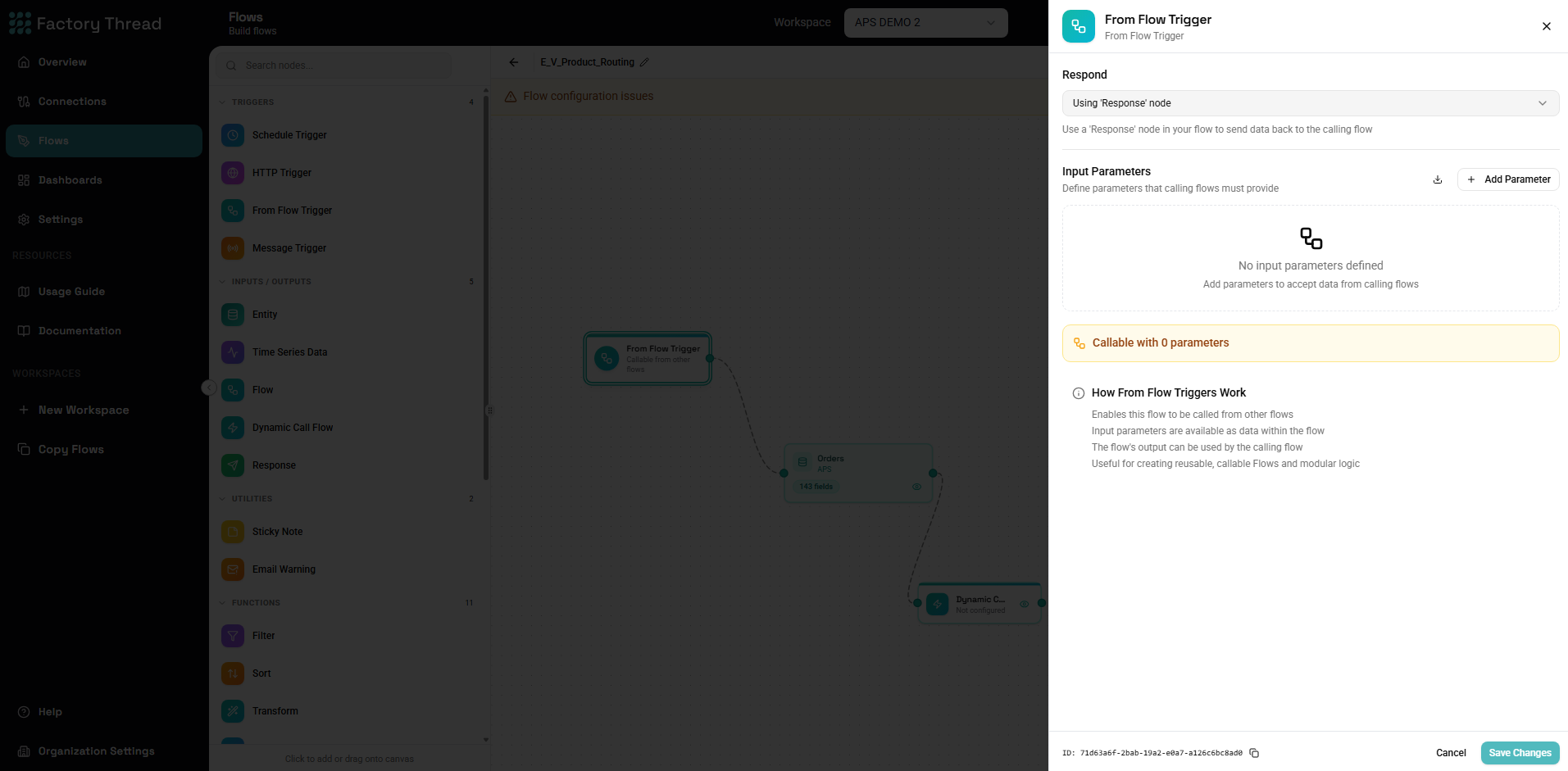
The From Flow Trigger enables your flow to be called from other flows, creating reusable, modular workflow components. Use it to build libraries of common operations that can be shared across multiple workflows.
When to Use From Flow Triggers
Ideal for:
- Reusable data transformations (e.g., address normalization)
- Shared business logic (e.g., pricing calculations)
- Common integrations (e.g., CRM lookup)
- Modular workflow design
- Testing isolated components
Not ideal for:
- Standalone automated workflows (use Schedule Trigger)
- External API access (use HTTP Trigger)
- Simple one-off operations
Understanding Subflow Architecture
Parent and Child Flows
┌─────────────────────────────────────────┐
│ Parent Flow                             │
│                                         │
│  [Trigger] → [Data] → [Call Flow] → ... │
│                            │            │
└────────────────────────────│────────────┘
                             ↓
┌─────────────────────────────────────────┐
│ Child Flow (has From Flow Trigger)      │
│                                         │
│  [From Flow] → [Process] → [Response]   │
│                                         │
└─────────────────────────────────────────┘
- Parent Flow: The flow that calls another flow
- Child Flow: The flow with the From Flow Trigger
- Input: Data passed from parent to child
- Output: Data returned from child to parent
Execution Flow
- Parent flow reaches Call Flow node
- Child flow executes with provided input
- Child flow completes and returns output
- Parent flow continues with child's output
Adding a From Flow Trigger
- Open your flow in the Designer
- Click Action in the toolbar
- Select From Flow Trigger
- The trigger node appears on the canvas
- Click to configure input parameters
Configuration Panel
Basic Settings
Name (optional) A descriptive name for this trigger:
- "Customer Data Input"
- "Order Processing Entry"
- "Calculation Parameters"
Input Parameters
Define what data this flow expects when called:
Adding Parameters:
- Click Add Parameter
- Enter parameter name (e.g.,
customerId) - Select data type
- Mark as required or optional
- Add description (helps callers understand usage)
Parameter Types:
| Type | Description | Example |
|---|---|---|
| Text | String values | Names, IDs, codes |
| Number | Numeric values | Quantities, amounts |
| Boolean | True/false | Flags, switches |
| Date | Date values | Start dates, deadlines |
| DateTime | Date and time | Timestamps |
| Object | Complex JSON | Nested data structures |
| Array | Lists | Multiple items |
Example Parameter Configuration:
Parameters:
  - name: customerId
    type: text
    required: true
    description: Unique customer identifier

  - name: includeHistory
    type: boolean
    required: false
    default: false
    description: Include transaction history

  - name: startDate
    type: date
    required: false
    description: Filter data from this date
Input Schema
For complex inputs, define a complete schema:
Simple Parameters: Individual named values passed separately.
Object Input: A structured object with multiple fields:
{
  "customer": {
    "id": "C123",
    "name": "Acme Corp"
  },
  "options": {
    "includeDetails": true,
    "format": "detailed"
  }
}
Array Input: A list of items to process:
{
  "orderIds": ["O001", "O002", "O003"],
  "batchSize": 100
}
Using Input Parameters in Your Flow
Accessing Parameters
Parameters are available throughout your flow:
In Filter conditions:
CustomerID equals ${customerId}
In Transform expressions:
"Customer: " & customerId
In Entity queries:
WHERE customer_id = ${customerId}
Parameter Validation
Input validation happens automatically:
- Required parameters must be provided
- Types are checked and converted
- Missing required parameters cause an error
Default Values
For optional parameters:
- Define defaults in the configuration
- Flow uses default when parameter not provided
- Helps make flows more flexible
Building the Response
Response Node
Every callable flow should have a Response node:
- Add Response node at the end of your flow
- Connect it to your final transformation
- Configure which data to return
Response Schema
Define what the calling flow receives:
Single Value:
{
  "result": "processed"
}
Data Record:
{
  "customer": {
    "id": "C123",
    "name": "Acme Corp",
    "status": "active"
  }
}
Data Collection:
{
  "items": [...],
  "count": 150
}
No Response
If your flow doesn't return data:
- Still add a Response node
- Configure empty response
- Calling flow knows execution completed
Calling From Other Flows
Call Flow Node
To use a flow with From Flow Trigger:
- In your parent flow, add Call Flow node
- Select the target flow
- Map input parameters
- Handle the returned data
Parameter Mapping
Static Values:
customerId = "C12345"
From Upstream Data:
customerId = ${CustomerRecord.ID}
Expressions:
fullName = FirstName & " " & LastName
Handling Output
The Call Flow node's output contains:
- Data returned by the Response node
- Execution metadata
- Error information if failed
Connect subsequent nodes to process returned data.
Dynamic Call Flow
For advanced scenarios, determine which flow to call at runtime:
Configuration
- Add Dynamic Call Flow node
- Specify a field containing the flow ID or name
- Map common parameters
Use Cases
- Configuration-driven: Flow ID stored in config table
- Multi-customer: Different flows for different clients
- A/B testing: Route to different flow versions
- Fallback logic: Primary flow with backup
Example
┌─────────────────────────────────────────┐
│  Data contains: processorFlowId = "F123"│
│                                         │
│  Dynamic Call Flow uses ${processorFlowId}
│  to determine which flow to execute     │
└─────────────────────────────────────────┘
Structured Response
Dynamic Call Flow returns a structured response with status and results:
Success Response:
{
  "status": true,
  "response": [
    { "field1": "value1", "field2": "value2" },
    { "field1": "value3", "field2": "value4" }
  ]
}
Failure Response:
{
  "status": false,
  "response": "Flow 'ProcessOrder' returned no data"
}
Output Fields:
| Field | Type | Description |
|---|---|---|
status | Boolean | true if flow executed successfully, false otherwise |
response | Array or String | Array of results on success, error message on failure |
Using the Response:
[Dynamic Call Flow] → [Condition: ${status} = true]
                              ↓ Yes                    ↓ No
                     [Process ${response}]    [Handle Error: ${response}]
Error Handling
Child Flow Errors
When a called flow fails:
- Error propagates to parent flow
- Parent flow can catch and handle
- Execution details available in Insights
Error Handling Patterns
Fail Fast: Let errors propagate immediately:
[Call Flow] → [Continue Processing]
         ↓ (error)
    Flow Fails
Catch and Handle: Use Condition to check for errors:
[Call Flow] → [Check Success] → [Continue if OK]
                     ↓
              [Handle Error]
Retry Logic: Call again on failure (use with caution):
[Call Flow] → [Check] → [Retry Call Flow] → ...
Best Practices
Design for Reusability
Single Responsibility: Each callable flow should do one thing well:
- "Normalize Address" - just normalizes addresses
- "Calculate Shipping" - just calculates shipping
- "Validate Customer" - just validates customer data
Clear Interfaces:
- Name parameters descriptively
- Document expected input/output
- Use consistent naming conventions
Minimal Dependencies:
- Avoid assumptions about calling context
- Accept all needed data as parameters
- Don't rely on global state
Parameter Design
Be Explicit:
# Good
- customerId: string (required)
- includeHistory: boolean (optional, default: false)

# Avoid
- data: object (unclear structure)
Use Appropriate Types:
# Good
- amount: number
- orderDate: date

# Avoid
- amount: string (will need conversion)
- orderDate: string (format ambiguous)
Documentation
In the Flow:
- Use meaningful trigger name
- Add descriptions to parameters
- Name internal nodes clearly
External:
- Document the flow's purpose
- Explain expected input/output
- Provide usage examples
Testing
Test Independently:
- Open the callable flow
- Use Preview with test parameters
- Verify output is correct
Test Integration:
- Create test parent flow
- Call the reusable flow
- Verify end-to-end behavior
Troubleshooting
"Flow not found"
- Verify the target flow is deployed
- Check flow ID is correct
- Ensure you have permission to call it
"Parameter missing"
- Check required parameters are mapped
- Verify parameter names match exactly
- Check for null values in source data
"Type mismatch"
- Verify input types match expected
- Add Convert nodes if needed
- Check for null/empty values
"Circular dependency"
- Flow A cannot call Flow B if Flow B calls Flow A
- Review your flow architecture
- Break cycles by redesigning
"Timeout"
- Called flow takes too long
- Optimize the called flow
- Consider async patterns for long operations
Examples
Address Normalization Flow
From Flow Trigger Parameters:
- street: text (required)
- city: text (required)
- state: text (required)
- zip: text (required)
Flow Logic:
- Transform: Standardize abbreviations
- Transform: Proper case formatting
- Lookup: Validate against postal database
- Response: Return normalized address
Caller Usage:
Input: {street: "123 main st", city: "new york", ...}
Output: {street: "123 Main Street", city: "New York", ...}
Pricing Calculator Flow
From Flow Trigger Parameters:
- productId: text (required)
- quantity: number (required)
- customerId: text (optional)
- promoCode: text (optional)
Flow Logic:
- Lookup: Get base price from products
- Lookup: Get customer discount (if customerId)
- Lookup: Get promo discount (if promoCode)
- Transform: Calculate final price
- Response: Return pricing breakdown
Data Enrichment Flow
From Flow Trigger Parameters:
- records: array (required)
- enrichmentType: text (required)
Flow Logic:
- For each record in array
- Lookup: Fetch enrichment data
- Merge: Combine original + enrichment
- Response: Return enriched records
Next Steps
- CallFlow Node - Using callable flows
- Schedule Trigger - Time-based automation
- HTTP Trigger - API endpoints
- Building Flows - Complete guide