User Management
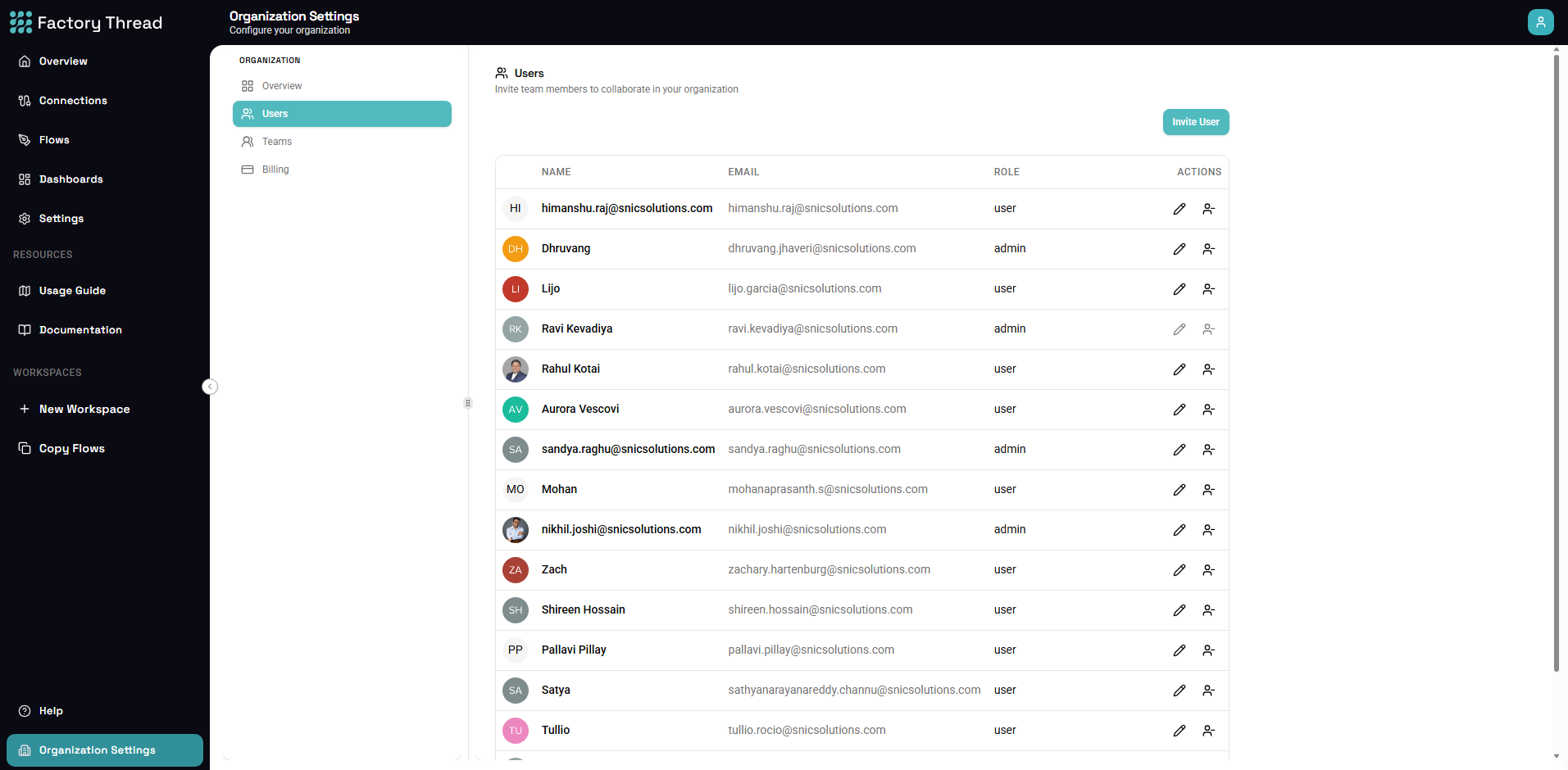
User management allows workspace administrators to invite team members, assign roles, and control access to flows and resources. Proper user management ensures security and enables collaboration.
Accessing User Management
- Navigate to Settings in the sidebar
- Click Users
- View and manage team members
Note: Only users with Admin role can access user management.
User Roles
Admin
Full workspace control:
- Access all settings
- Manage users and roles
- View all flows and connections
- Create and manage API keys
- Configure integrations
Editor
Create and modify content:
- Create and edit flows
- Manage connections
- View execution history
- Cannot manage users
- Cannot access billing
Viewer
Read-only access:
- View flows and executions
- Cannot create or edit
- Cannot manage connections
- Limited settings access
Custom Roles
Available in enterprise plans:
- Define custom permission sets
- Granular access control
- Role inheritance
Inviting Users
Send an Invitation
- Click Invite User
- Enter the email address
- Select a role
- Optional: Add to specific teams
- Click Send Invitation
Invitation Email
The user receives:
- Welcome email with invitation link
- Instructions to create account (if new)
- Link to accept and join workspace
Pending Invitations
Track invitations:
| Status | Description |
|---|---|
| Pending | Invitation sent, not accepted |
| Accepted | User joined workspace |
| Expired | Invitation timed out |
| Revoked | Invitation cancelled |
Resend or revoke: Click on pending invitation for options.
Managing Users
User List
View all workspace members:
| Column | Description |
|---|---|
| Name | User display name |
| User email address | |
| Role | Assigned role |
| Status | Active/Suspended |
| Last Active | Last login time |
User Actions
Change role:
- Click on user
- Select new role
- Confirm change
Suspend user:
- Click on user
- Click Suspend
- User loses access immediately
Remove user:
- Click on user
- Click Remove
- Confirm removal
- User removed from workspace
Access Control
Flow-Level Permissions
Control access per flow:
| Permission | Can View | Can Edit | Can Execute |
|---|---|---|---|
| Owner | Yes | Yes | Yes |
| Editor | Yes | Yes | Yes |
| Viewer | Yes | No | Limited |
| None | No | No | No |
Connection Access
Control who can use connections:
- All workspace members
- Specific users/teams
- Admins only
Folder Permissions
Organize with folders:
- Set folder-level access
- Inherited by contents
- Override at item level
Teams (Enterprise)
Creating Teams
- Go to Settings > Teams
- Click Create Team
- Name the team
- Add members
Team Permissions
Assign permissions to teams:
- Easier management than per-user
- Members inherit team access
- Combine multiple team memberships
Team Examples
Engineering Team
  - All development flows
  - All test connections
  - Editor role

Operations Team
  - Production flows
  - Production connections
  - Viewer role on dev flows
Single Sign-On (SSO)
Supported Providers
Enterprise SSO options:
- SAML 2.0
- OAuth 2.0 / OpenID Connect
- Azure Active Directory
- Okta
- Google Workspace
SSO Configuration
- Go to Settings > Authentication
- Enable SSO
- Configure provider settings
- Test configuration
- Enable for all users
SSO + Local Users
Hybrid mode:
- SSO users from identity provider
- Local admin accounts for emergencies
- Automatic user provisioning
Audit Trail
User Activity Logging
Track user actions:
- Login/logout events
- Flow modifications
- Execution triggers
- Settings changes
Viewing Audit Logs
- Go to Settings > Audit
- Filter by user, action, date
- Export for compliance
Log Retention
| Plan | Retention |
|---|---|
| Free | 30 days |
| Pro | 90 days |
| Enterprise | 1 year+ |
Security Best Practices
Principle of Least Privilege
Grant minimum required access:
- Start with Viewer role
- Upgrade as needed
- Regular access reviews
Regular Access Reviews
Periodic audits:
- Review user list quarterly
- Remove inactive users
- Verify role assignments
Off-boarding
When team members leave:
- Remove from workspace immediately
- Revoke any API keys they created
- Review shared credentials
- Audit recent activity
Multi-Factor Authentication
Enable MFA:
- Required for Admins
- Recommended for all users
- Configure in security settings
Troubleshooting
User Can't Access
Possible causes:
- Not added to workspace
- Role lacks permission
- Account suspended
- Wrong workspace
Solutions:
- Verify user is in workspace
- Check role permissions
- Unsuspend if needed
- Confirm correct workspace
Invitation Not Received
Possible causes:
- Email in spam folder
- Email address incorrect
- Email blocked by IT
Solutions:
- Check spam/junk folder
- Verify email address
- Allowlist sender
- Resend invitation
Permission Errors
User reports "Access Denied":
- Verify user's role
- Check item-level permissions
- Confirm no suspensions
- Review team memberships
Next Steps
- API Keys - Manage API access
- Settings Overview - Other settings
- Building Flows - Create workflows