Settings Overview
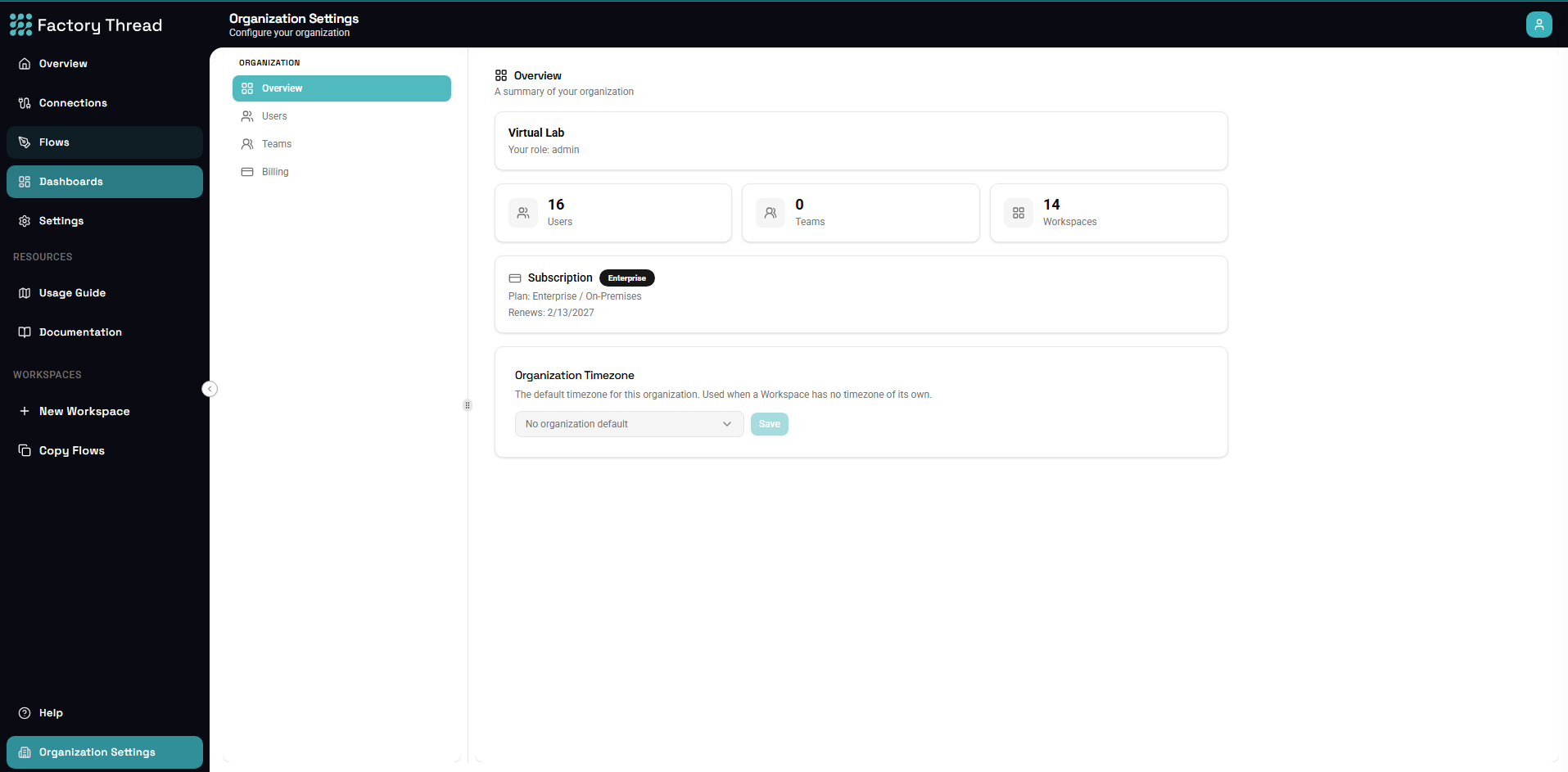
The Settings page provides access to workspace configuration, user management, API keys, and other administrative options. Access Settings from the sidebar to customize your FactoryThread environment.
Accessing Settings
- Click Settings in the sidebar (under Admin)
- Select a settings category from the menu
- Configure options as needed
- Changes save automatically or via Save button
Settings Categories
General Settings
Workspace Configuration:
- Workspace name and description
- Default timezone
- Date and number formats
- Default settings for new flows
API Keys
Manage API Access:
- Create API keys for external access
- View and manage existing keys
- Set key permissions and scopes
- Revoke compromised keys
See API Keys for details.
Email Configuration
Email Trigger Settings:
- Configure email-triggered workflows
- Set up email addresses for flows
- Manage email routing rules
See Email Triggers for details.
User Management
Team Access:
- Invite and manage users
- Assign roles and permissions
- Review user activity
- Remove access
See Users for details.
Notifications
Alert Configuration:
- Flow failure notifications
- Execution alerts
- Daily/weekly summaries
- Notification channels (email, Slack, etc.)
Integrations
Third-Party Connections:
- Slack notifications
- Microsoft Teams
- Webhook endpoints
- Other integrations
Workspace Settings
General Information
Workspace details:
| Setting | Description |
|---|---|
| Name | Workspace display name |
| Description | Optional description |
| Timezone | Default timezone for schedules |
| Date Format | MM/DD/YYYY, DD/MM/YYYY, etc. |
Default Flow Settings
New flow defaults:
- Default trigger type
- Error handling behavior
- Logging level
- Retry configuration
Resource Limits
Usage controls:
- Maximum concurrent executions
- Storage quotas
- API rate limits
- Execution timeouts
Role-Based Access
Admin Role
Admins can:
- Access all settings
- Manage users and permissions
- Configure integrations
- View billing and usage
User Role
Users can:
- View their own settings
- Access flows they have permission for
- Cannot modify workspace settings
Viewer Role
Viewers can:
- View flows and executions
- Cannot create or edit
- Limited settings access
Common Tasks
Changing Timezone
- Go to Settings > General
- Select Timezone dropdown
- Choose your timezone
- Click Save
All scheduled flows use this timezone.
Enabling Notifications
- Go to Settings > Notifications
- Toggle notification types
- Configure channels (email, Slack)
- Set notification frequency
Managing Access
- Go to Settings > Users
- View current users and roles
- Invite new users
- Modify permissions as needed
Security Settings
Session Management
- Session timeout duration
- Remember me options
- Concurrent session limits
Audit Logging
- Enable audit trail
- Log retention period
- Exportable logs
IP Allowlisting
- Restrict access by IP
- Define allowed IP ranges
- Emergency access options
Data Management
Backup Settings
- Automatic backup schedule
- Retention period
- Export options
Data Retention
- Execution log retention
- Preview data retention
- Archive policies
Troubleshooting
Can't Access Settings
Possible causes:
- Insufficient permissions
- Session expired
- Browser issues
Solutions:
- Contact workspace admin
- Log out and log in again
- Try different browser
Settings Not Saving
Possible causes:
- Validation errors
- Network issues
- Concurrent edits
Solutions:
- Check for error messages
- Verify network connection
- Refresh and try again
Next Steps
- API Keys - Configure API access
- Email Triggers - Set up email workflows
- Users - Manage team access