Organization Settings
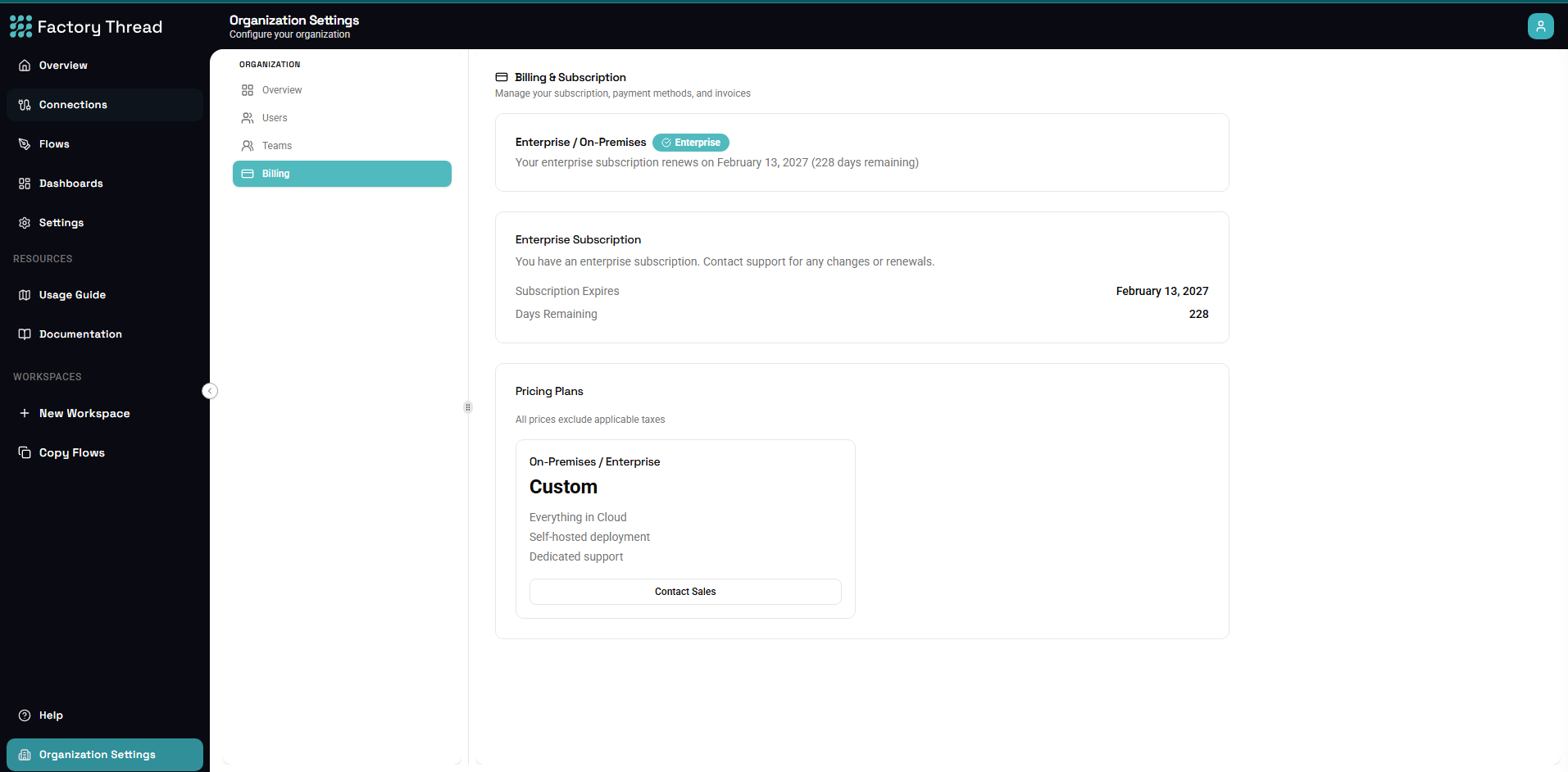
Your Organization is the top-level account that everything in FactoryThread belongs to. Organization Settings is where you manage who is in the Organization, group people into Teams, and handle billing.
Open it from Organization Settings in the sidebar (under Admin). The page is admin-gated, and some sections self-gate to administrators as well.
Sections
| Section | What it's for |
|---|---|
| Overview | Your Organization at a glance. |
| Users | Invite people to the Organization and set each person's role. See Users. |
| Teams | Group members into Teams so you can grant access to several people at once (admin only). See Teams. |
| Billing | Manage your subscription, payment methods, and invoices. |
Organization roles
Every person in the Organization has one of two account-wide roles. The role is set when you invite them and can be changed later on the Users page.
| Role | What it grants |
|---|---|
| Admin | Full control of the Organization. Manages Users, Teams, and Billing; creates, renames, and deletes Workspaces; and manages Workspace membership. An Admin automatically has admin access to every Workspace and its connections — there's no need to grant them individually. |
| User | A regular member. Can create, edit, and publish flows and dashboards in any Workspace they're a member of, and can create their own Workspaces. Cannot manage Organization Users, Teams, or Billing. |
A User only sees the Workspaces they've been granted; an Admin sees them all. For how Workspace-level access is granted to a User, see Sharing & Access Control.
How the Organization role relates to Workspace roles
The account-wide role above is separate from the role a person has on a particular Workspace (admin, member, or guest):
- An Admin appears as admin on every Workspace automatically.
- A User appears as a member or guest on each Workspace, according to the grants made in Workspace Settings → Members (directly or via a Team).
See Sharing & Access Control for the full picture of how Workspace roles and dashboard grants add up.
Next steps
- Users — invite members and set their role
- Teams — group members and grant them access together
- Sharing & Access Control — how Workspace roles and grants work