
Database Connections
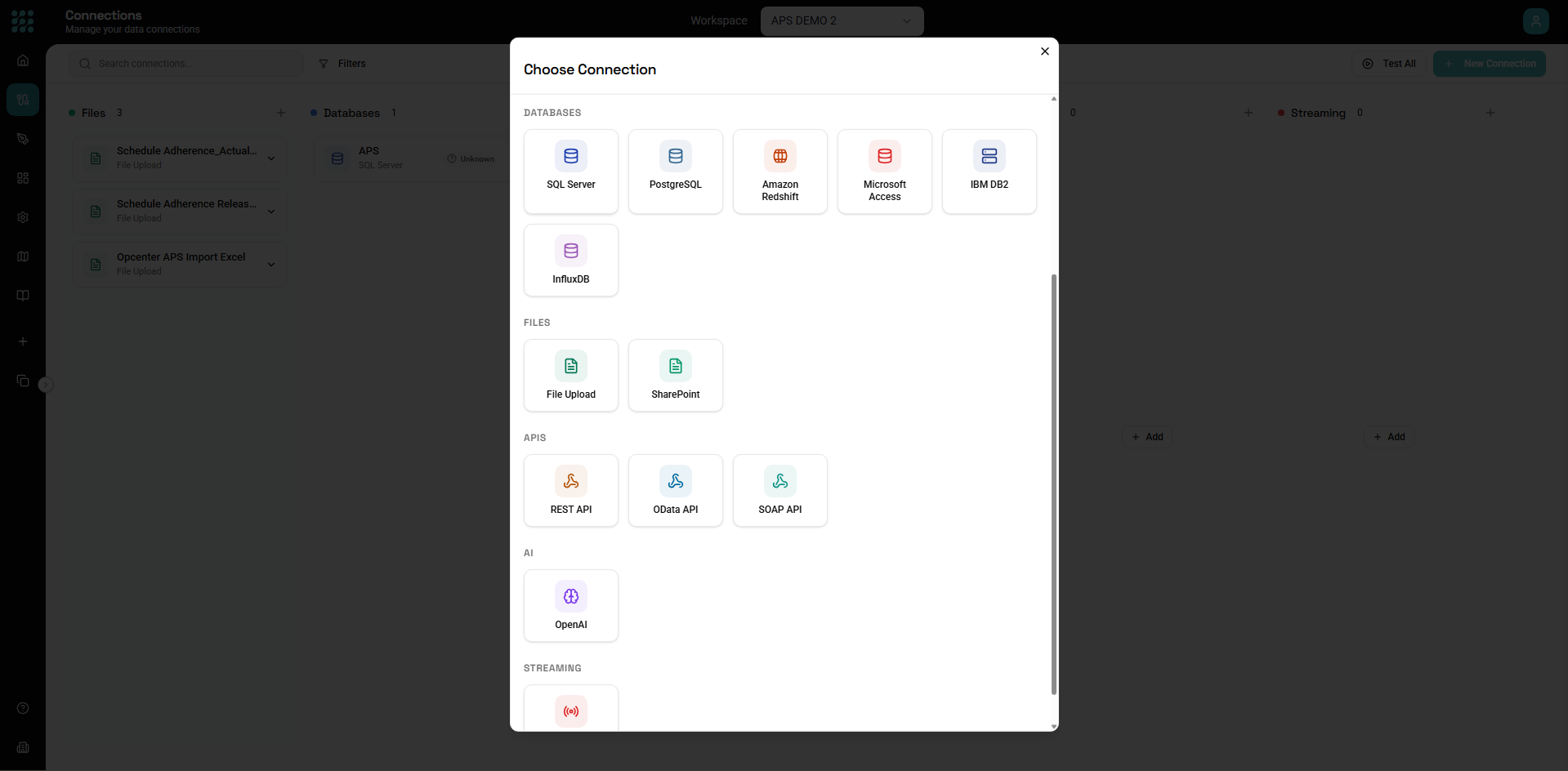
FactoryThread supports connections to major relational databases. This guide covers configuration for each supported database type.

Database Connection Configuration

SQL Server

Microsoft SQL Server is fully supported, including Azure SQL Database.

Connection Settings

FieldDescriptionExample
NameYour descriptive name"Production Sales DB"
ServerHostname or IP addresssql.company.com or 192.168.1.100
PortServer port (default: 1433)1433
DatabaseDatabase nameSalesDB
AuthenticationMethod to authenticateSee below

Authentication Options

SQL Server Authentication

  • Enter username and password
  • Most common for applications
  • User must exist in the database

Windows Authentication

  • Uses Windows/Active Directory credentials
  • Server must trust the domain
  • Requires NTLM or Kerberos

Azure Active Directory

  • For Azure SQL Database
  • Uses Azure AD credentials
  • Supports MFA (interactive mode only)

Advanced Options

Encrypt Connection Enable TLS encryption for data in transit.

Trust Server Certificate Accept self-signed certificates. Only use in development.

Connection Timeout How long to wait for initial connection (default: 30 seconds).

Command Timeout How long queries can run before timing out.

Example Configuration

Name: Production Sales
Server: sql-prod.company.com
Port: 1433
Database: SalesDB
Authentication: SQL Server
Username: factorythread_svc
Password: ********
Encrypt: Yes

PostgreSQL

PostgreSQL connections support versions 10 and above.

Connection Settings

FieldDescriptionExample
NameYour descriptive name"Analytics Warehouse"
HostHostname or IPpg.company.com
PortServer port (default: 5432)5432
DatabaseDatabase nameanalytics
UsernameDatabase userfactorythread
PasswordUser password********

SSL Options

SSL Mode:

ModeDescription
DisableNo SSL
RequireSSL required, no verification
Verify-CASSL with CA verification
Verify-FullSSL with CA and hostname verification

For production, use Verify-Full when possible.

Connection Pooling

PostgreSQL supports connection pooling:

  • Min Pool Size - Minimum connections to maintain
  • Max Pool Size - Maximum concurrent connections

Adjust based on your usage patterns and database limits.

Amazon Redshift

Connect to your Redshift data warehouse for analytics workloads.

Connection Settings

FieldDescriptionExample
NameYour descriptive name"Sales Data Warehouse"
Cluster EndpointRedshift endpointcluster.abc123.region.redshift.amazonaws.com
PortCluster port (default: 5439)5439
DatabaseDatabase namewarehouse
UsernameDatabase userfactorythread
PasswordUser password********

IAM Authentication

For enhanced security, use IAM authentication:

  1. Create an IAM role with Redshift access
  2. Enable IAM authentication on your cluster
  3. Configure the connection to use IAM

Best Practices

  • Use a dedicated Redshift user for FactoryThread
  • Grant SELECT permissions only on necessary schemas
  • Use WLM queues to manage query priority
  • Monitor query performance in Redshift console

IBM DB2

Connect to IBM DB2 databases, including DB2 for z/OS and DB2 for i.

Connection Settings

FieldDescriptionExample
NameYour descriptive name"ERP System"
HostDatabase serverdb2.company.com
PortServer port50000
DatabaseDatabase nameERPDB
UsernameDatabase userfactorythread
PasswordUser password********

Platform-Specific Notes

DB2 for LUW (Linux, Unix, Windows)

  • Standard configuration as above
  • Supports connection pooling

DB2 for z/OS

  • May require additional client configuration
  • Consult your DBA for specific settings

DB2 for i (AS/400)

  • Use the system name as host
  • Library list affects table visibility

Microsoft Access

Connect to Access databases (.accdb, .mdb files).

Connection Settings

FieldDescriptionExample
NameYour descriptive name"Legacy Customer DB"
File PathPath to database file\\server\share\database.accdb
PasswordDatabase password (if set)********

Limitations

  • Access databases have size limits (2GB)
  • Concurrent connections are limited
  • Network file shares may have latency
  • Consider migrating to SQL Server for production workloads

General Configuration

Naming Connections

Use clear, descriptive names:

  • Include environment: "Production", "Staging", "Dev"
  • Include purpose: "Sales Data", "ERP", "Analytics"
  • Example: "Production - Sales Database"

Testing Connections

Always test before saving:

  1. Click Test Connection
  2. Success: Green checkmark, entity count displayed
  3. Failure: Error message with details

Firewall Configuration

Ensure your database allows connections from FactoryThread:

Cloud-hosted databases:

  • Add FactoryThread IP addresses to allowed list
  • Or use VPC peering/private endpoints

On-premises databases:

  • Configure firewall rules
  • Ensure network routing allows traffic

Service Accounts

Best practices for database users:

  1. Create dedicated users

    • Don't use personal accounts
    • Don't use admin/sa accounts
  2. Minimal permissions

    • Grant SELECT on tables you need
    • Grant EXECUTE on stored procedures if needed
    • Avoid broad permissions
  3. Password policies

    • Use strong passwords
    • Rotate periodically
    • Don't reuse across environments

Entity Discovery

After connecting, FactoryThread discovers available entities:

What's Discovered

  • Tables - Base tables in accessible schemas
  • Views - Database views
  • Stored Procedures - Procedures with result sets (varies by database)

Controlling Discovery

Schema filtering: Some databases let you specify which schemas to discover:

  • Reduces discovery time
  • Hides irrelevant objects

Permission-based: Discovery only shows objects the connection user can access.

Refreshing Entities

When database schema changes:

  1. Open the connection
  2. Click Refresh Entities
  3. New tables/columns appear
  4. Removed objects are flagged

Troubleshooting

Common Connection Errors

"Cannot connect to server"

  • Verify hostname/IP is correct
  • Check port number
  • Ensure server is running
  • Test network connectivity (ping, telnet)

"Login failed"

  • Verify username and password
  • Check user exists in database
  • Verify authentication method matches

"Database does not exist"

  • Check database name spelling
  • Verify user has access to database
  • Check case sensitivity

"SSL certificate error"

  • Certificate may be expired
  • CA not trusted
  • Hostname mismatch

Performance Issues

Slow entity discovery:

  • Large databases take longer
  • Filter to specific schemas
  • Check database performance

Slow queries:

  • Database may need optimization
  • Add indexes on frequently queried columns
  • Review query execution plans

Timeout errors:

  • Increase timeout settings
  • Optimize slow queries
  • Check network latency

Next Steps